Main idea of drawings

This section describes another way to visualize data. It is convenient for:
  • displaying data that is not a time series;
  • changes and erasures of previously drawn elements;
  • displaying something not only in chart coordinates (time-price), but also, for example, just in the corner of the screen on top of the chart;
  • displaying something in the future or retroactively;
Advantages and disadvantages:
+ it is a very powerful tool that can significantly increase the informative value of the indicator;
- this is more difficult to write and debug than working with time series.
To control the drawing of elements, you will need the self.chart object, which is available in your indicator by default as part of the MainContext base class. You can do three things with objects:
  • adding a new element to the chart
  • changing what was drawn earlier, even if it was drawn on previous bars
  • removing an item from the chart
Very basic example of drawings usage
@indicator('Very basic example of drawings usage', overlay_main_pane=True)
def Main(self):
    # some logic of indicator
    ...

    # add some new drawings
    self.chart.draw(item1)
    self.chart.draw(item2)

    # update item1
    item1.some_field = 42
    self.chart.draw(item1)

    # erase item2
    self.chart.draw(item2)

    return
Or more specifically, for example, adding a line to the chart:
Line drawing
# indie:lang_version = 5
from indie import indicator, MutSeries, color, param
from indie.drawings import LineSegment, AbsolutePosition

@indicator('line', overlay_main_pane=True)
def Main(self):
    if self.bar_index == 5000:
        p1 = AbsolutePosition(self.time[42], self.close[42])
        p2 = AbsolutePosition(self.time[0], self.close[0])
        self.chart.draw(LineSegment(p1, p2, color=color.GREEN))
    return
Different types of elements can be positioned differently. Two types of positions are currently supported:
  • AbsolutePosition - the item’s position is set in chart absolute coordinates (time-price), the item will scroll along with the chart;
  • RelativePosition - the item’s position is set relative to the edges of the chart, the element will hang in one place on the screen on top of the chart.
The ends of the LineSegments can only be positioned absolutely. Labels can have either AbsolutePosition or RelativePosition. Relative positioned Labels can be useful for displaying some statistics. The Relative Position can be selected from the enum, or defined manually. The following pre-prepared positions are available to choose from:
from indie.drawings import relative_position

relative_position.TOP_LEFT
relative_position.TOP_CENTER
relative_position.TOP_RIGHT
relative_position.MIDDLE_LEFT
relative_position.MIDDLE_CENTER
relative_position.MIDDLE_RIGHT
relative_position.BOTTOM_LEFT
relative_position.BOTTOM_CENTER
relative_position.BOTTOM_RIGHT
You can also set a custom relative position:
from indie.drawings import RelativePosition, vertical_anchor as va, horizontal_anchor as ha

# place the upper-left corner of the element 10% of the left and 10% of the top edges of the chart
RelativePosition(
    vertical_anchor = va.TOP,  # TOP/MIDDLE/BOTTOM
    horizontal_anchor = ha.LEFT,  # LEFT/CENTER/RIGHT
    top_bottom_ratio = 0.1,  # float value from 0.0 to 1.0
    left_right_ratio = 0.1,  # float value from 0.0 to 1.0
)

# place the center of the element to center of the chart
RelativePosition(
    vertical_anchor = va.MIDDLE,
    horizontal_anchor = ha.CENTER,
    top_bottom_ratio = 0.5,
    left_right_ratio = 0.5,
)
vertical_anchor and horizontal_anchor set which point of the element will be bound to this position. top_bottom_ratio and left_right_ratio set how large margins should be made from the left and upper edges of the chart. There are no presets for absolute positions, they are always set by the user:
point1 = AbsolutePosition(self.time[0], self.close[0])

LineSegment

LineSegment serves as a versatile tool for lines, segments, and rays. You can customize the line style, color, width, as well as adjust the ends of the segment (arrows, circles, etc.). For a complete list of parameters, see the Library Reference. Below is a simple example with segments. An indicator that creates lines across the entire history with a length of 3 bars (configurable by parameter), connecting close candles:
# indie:lang_version = 5
from indie import indicator, MutSeries, color, param
from math import isnan
from indie.drawings import LineSegment, AbsolutePosition

@indicator('lines', overlay_main_pane=True)
@param.int('line_len', default=3)
def Main(self, line_len):
    if self.bar_index % line_len == 0:
        if not isnan(self.time[line_len]):
            p1 = AbsolutePosition(self.time[line_len], self.close[line_len])
            p2 = AbsolutePosition(self.time[0], self.close[0])
            self.chart.draw(LineSegment(p1, p2, color=color.GREEN))
    return

Shapes: Rectangle, Circle, Triangle, Channel

Indie drawings also support several shape primitives built on top of absolute chart coordinates:
  • Rectangle — two corner points, optional fill and middle line.
  • Circle — center point plus a point on the edge.
  • Triangle — three corner points.
  • Channel — two anchor points plus a width in price units.
Shapes are a versatile tool: you can use them to highlight important areas on the chart, mark technical-analysis patterns, visualize zones of support and resistance, outline price ranges, or annotate anything else that matters to your strategy. The examples below show just one possible application of each shape — feel free to adapt them for your own use case.

Rectangle & Channel

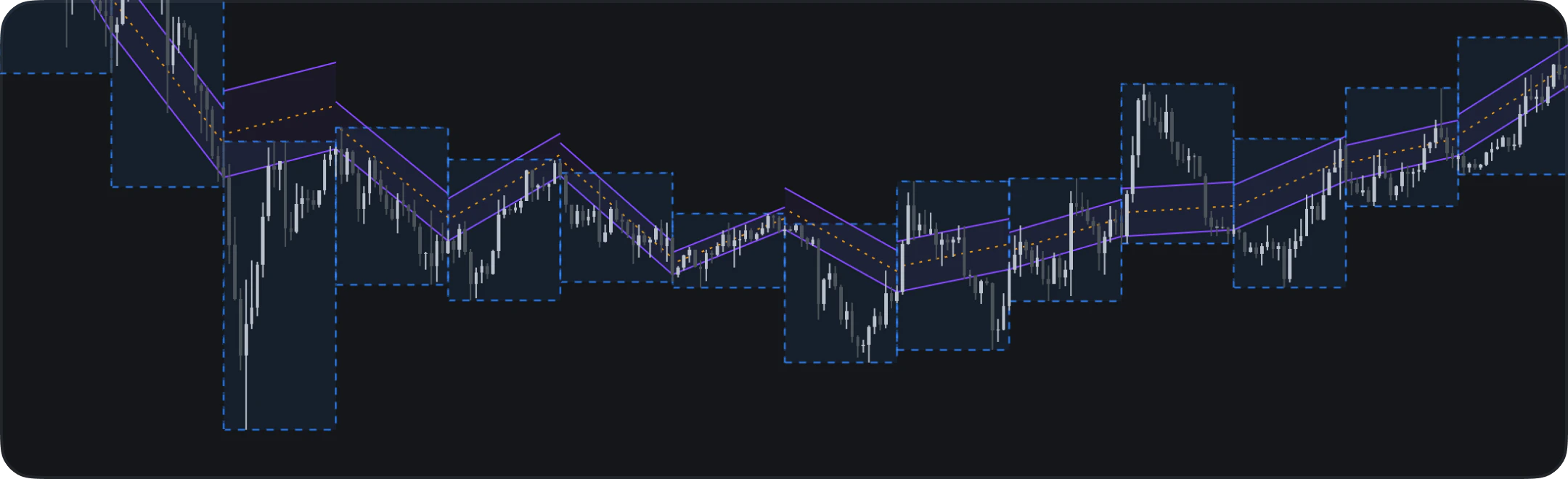
Rectangles and channels are commonly used to highlight price ranges, consolidation zones, or trend corridors. In the example below we tile rectangles to mark the high-low range of each 20-bar window and overlay a channel that follows the close-price trend:
Range boxes and trend channel
# indie:lang_version = 5
from indie import indicator, color, line_style, param
from math import isnan
from indie.drawings import Rectangle, Channel, AbsolutePosition
from indie.algorithms import Highest, Lowest

@indicator('Ranges & Channel', overlay_main_pane=True)
@param.int('period', default=20)
def Main(self, period):
    if self.bar_index % period != 0 or isnan(self.time[period]):
        return

    hi = Highest.new(self.high, period)
    lo = Lowest.new(self.low, period)

    # Rectangle marking the high-low range of each window
    self.chart.draw(Rectangle(
        AbsolutePosition(self.time[period], hi[0]),
        AbsolutePosition(self.time[0], lo[0]),
        line_style=line_style.DASHED,
        line_color=color.BLUE,
        bg_color=color.BLUE(0.08),
    ))

    # Channel corridor along close prices
    self.chart.draw(Channel(
        AbsolutePosition(self.time[period], self.close[period]),
        AbsolutePosition(self.time[0], self.close[0]),
        channel_width=(hi[0] - lo[0]) * 0.3,
        line_color=color.PURPLE,
        bg_color=color.PURPLE(0.06),
        middle_line_style=line_style.DOTTED,
    ))
    return
Rectangle and channel example

Circle & Triangle

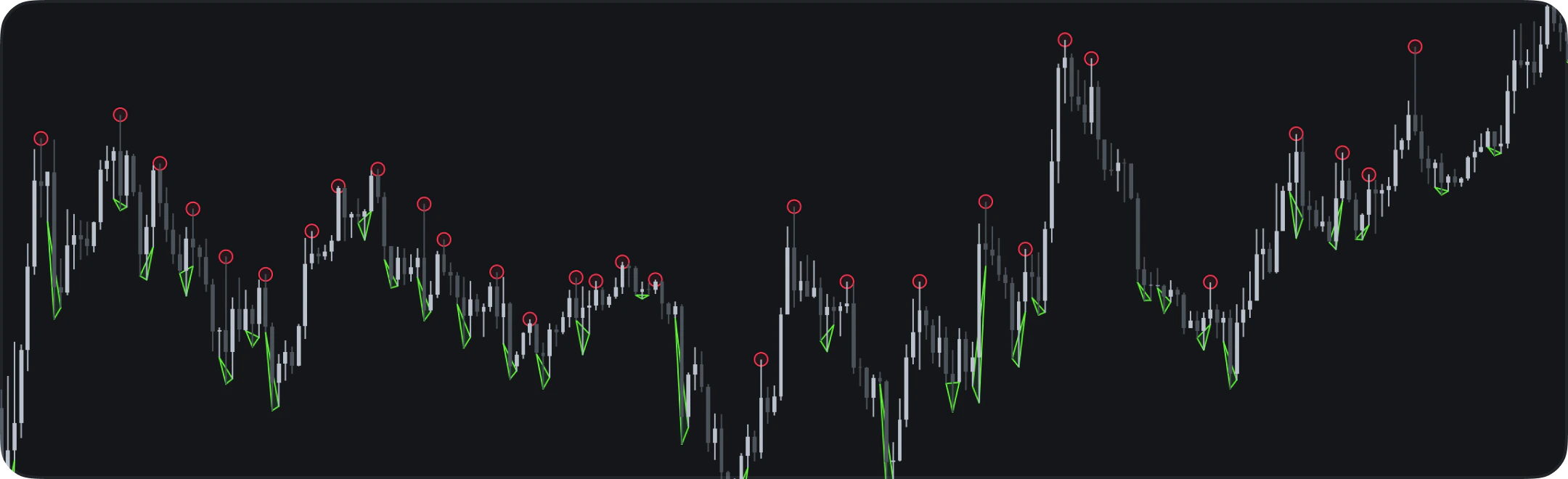
Circles and triangles can serve many purposes — marking significant patterns, annotating key price levels, or drawing attention to specific chart events. To demonstrate how they work, the example below draws circles near swing-high pivots and triangles near swing-low pivots:
Swing markers
# indie:lang_version = 5
from indie import indicator, color, line_style
from math import isnan
from indie.drawings import Circle, Triangle, AbsolutePosition

@indicator('Swing markers', overlay_main_pane=True)
def Main(self):
    if isnan(self.time[4]):
        return

    # Swing high: bar[2] is higher than its four neighbors
    if (self.high[2] > self.high[3]
            and self.high[2] > self.high[4]
            and self.high[2] > self.high[1]
            and self.high[2] > self.high[0]):
        self.chart.draw(Circle(
            AbsolutePosition(self.time[2], self.high[2]),
            AbsolutePosition(self.time[1], self.high[2]),
            line_color=color.RED,
            bg_color=color.RED(0.08),
        ))

    # Swing low: bar[2] is lower than its four neighbors
    if (self.low[2] < self.low[3]
            and self.low[2] < self.low[4]
            and self.low[2] < self.low[1]
            and self.low[2] < self.low[0]):
        self.chart.draw(Triangle(
            AbsolutePosition(self.time[3], self.low[3]),
            AbsolutePosition(self.time[1], self.low[1]),
            AbsolutePosition(self.time[2], self.low[2]),
            line_color=color.GREEN,
            bg_color=color.GREEN(0.10),
        ))
    return
Circle and triangle example

Label

Labels also have many different parameters, see their list in the Library Reference. Now let’s look at a couple of examples of using labels.

Absolute positioned

An indicator that draws a close line and draws a price label for each hundredth bar:
# indie:lang_version = 5
from indie import indicator, Var, MainContext
from indie.drawings import LabelAbs, AbsolutePosition, vertical_anchor as va, horizontal_anchor as ha

@indicator('Labels with absolute position')
def Main(self):
    if self.bar_index % 100 == 0:
        self.chart.draw(
            LabelAbs(
                str(self.close[0]),
                AbsolutePosition(self.time[0], self.close[0])
            )
        )
    return self.close[0]

Relative positioned

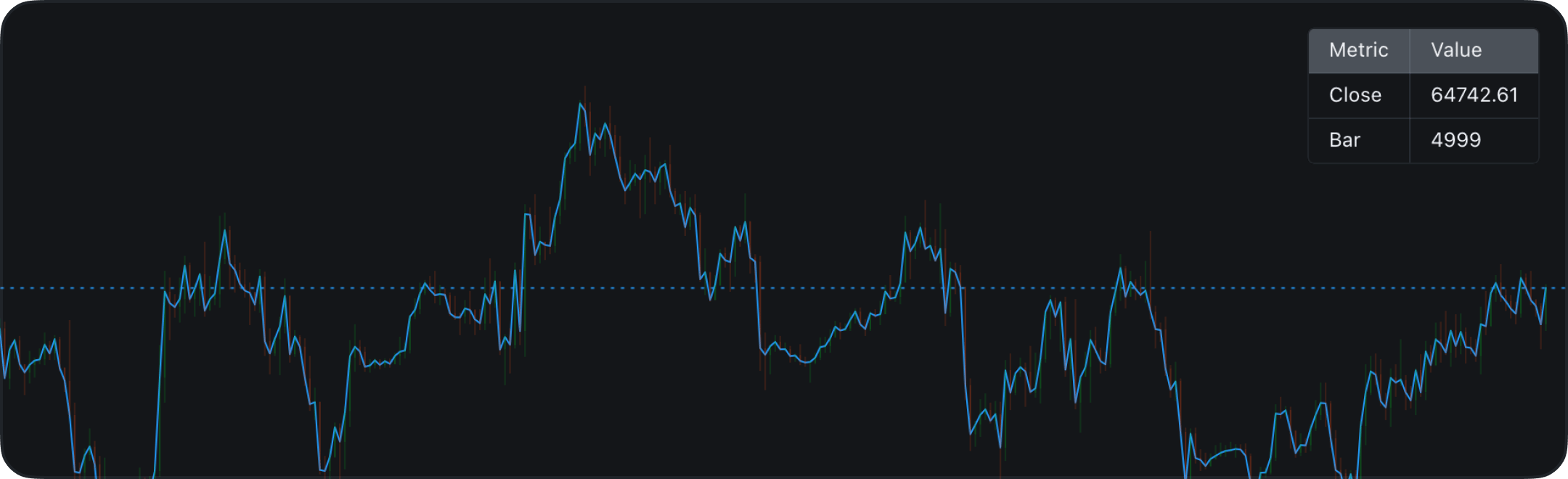
The indicator that draws the close price in the corner of the chart:
# indie:lang_version = 5
from indie import indicator, Var, MainContext
from indie.drawings import LabelRel, RelativePosition, vertical_anchor as va, horizontal_anchor as ha

@indicator('Labels with relative position')
class Main(MainContext):
    def calc(self):
        label_var = Var[LabelRel].new(LabelRel('abc', RelativePosition(
            vertical_anchor=va.BOTTOM,
            horizontal_anchor=ha.RIGHT,
            top_bottom_ratio=0.9,
            left_right_ratio=0.9,
        )))
        label_var.get().text = 'close=' + str(self.close[0])
        self.chart.draw(label_var.get())
        return self.close[0]

Demo example: lines + labels

This example shows how you can use lines and labels in your indicators. Add it to your chart and try to play with the drawing items style. Labels and lines usage example Source code:
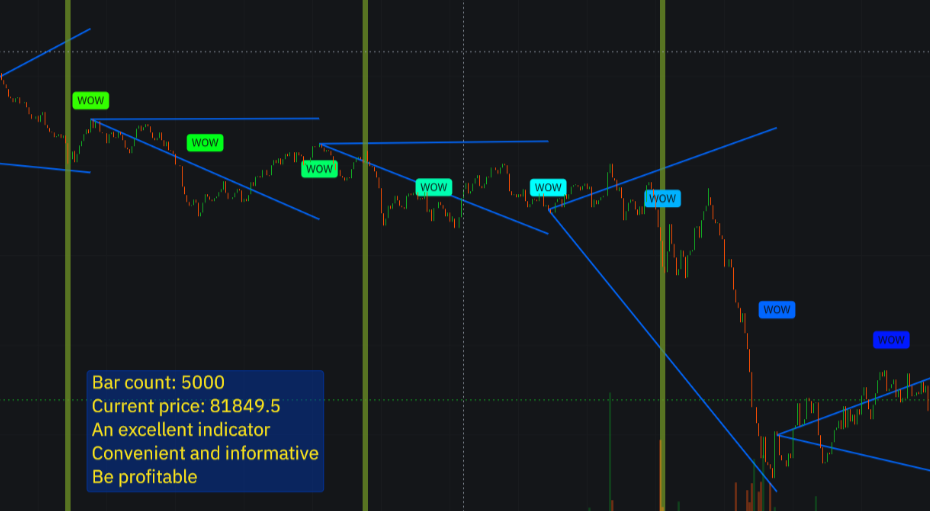
Demo example: + labels
# indie:lang_version = 5
from indie import indicator, Var, color
from indie.drawings import (
    Label, LineSegment, AbsolutePosition, RelativePosition,
    LabelRel, LabelAbs, vertical_anchor as va, horizontal_anchor as ha,
)
from indie.algorithms import Highest, Lowest, SinceHighest, SinceLowest
from indie.color import rgba
from math import isnan

@indicator('Drawings example 2', overlay_main_pane=True)
def Main(self):
    highest = Highest.new(self.high, 100)
    lowest = Lowest.new(self.low, 100)

    if self.bar_count % 100 == 0:
        self.chart.draw(LineSegment(
            AbsolutePosition(self.time[100], self.close[100]),
            AbsolutePosition(self.time[0], highest[0]),
            color=color.BLUE,
        ))
        self.chart.draw(LineSegment(
            AbsolutePosition(self.time[100], self.close[100]),
            AbsolutePosition(self.time[0], lowest[0]),
            color=color.BLUE,
        ))

    if self.bar_count % 130 == 0:
        self.chart.draw(LineSegment(
            AbsolutePosition(self.time[0], self.close[0]),
            AbsolutePosition(self.time[0], self.close[0] + 1.0),
            color=color.OLIVE(0.75),
            line_width=7,
        ))

    if self.bar_count % 50 == 0:
        price = (highest[0] + lowest[0]) / 2
        if isnan(price):
            price = self.close[0]
        r, g, b = rainbow_color((self.bar_count // 50) % 20, 20)
        self.chart.draw(LabelAbs(
            "WOW",
            AbsolutePosition(self.time[0], price),
            bg_color=rgba(r, g, b, 1.0),
        ))

    stats_label = Var[LabelRel].new(LabelRel(
        "text",
        RelativePosition(
            vertical_anchor=va.BOTTOM,
            horizontal_anchor=ha.LEFT,
            top_bottom_ratio=0.9,
            left_right_ratio=0.1,
        ),
        bg_color=color.NAVY(0.5),
        text_color=color.YELLOW,
        font_size=24,
    ))
    stats_label.get().text = (
        "Bar count: " + str(self.bar_count) +
        "\nCurrent price: " + str(self.close[0]) +
        "\nAn excellent indicator" +
        "\nConvenient and informative" +
        "\nBe profitable"
    )
    self.chart.draw(stats_label.get())
    return

def hsv_to_rgb(h: float, s: float, v: float) -> tuple[int, int, int]:
    i = int(h * 6)
    f = h * 6 - i
    p = v * (1 - s)
    q = v * (1 - f * s)
    t = v * (1 - (1 - f) * s)
    i %= 6

    r, g, b = 0.0, 0.0, 0.0
    if i == 0:
        r, g, b = v, t, p
    elif i == 1:
        r, g, b = q, v, p
    elif i == 2:
        r, g, b = p, v, t
    elif i == 3:
        r, g, b = p, q, v
    elif i == 4:
        r, g, b = t, p, v
    else:
        r, g, b = v, p, q

    return int(r * 255), int(g * 255), int(b * 255)

def rainbow_color(i: int, total: int) -> tuple[int, int, int]:
    hue = i / total
    return hsv_to_rgb(hue, 1.0, 1.0)