

Enabling Two-Factor Authentication
You can activate 2FA in your profile settings.1. Open Settings → Login & Security
In the Two-Factor Authentication section, select Setup 2FA.2. Scan the QR code or use the manual key
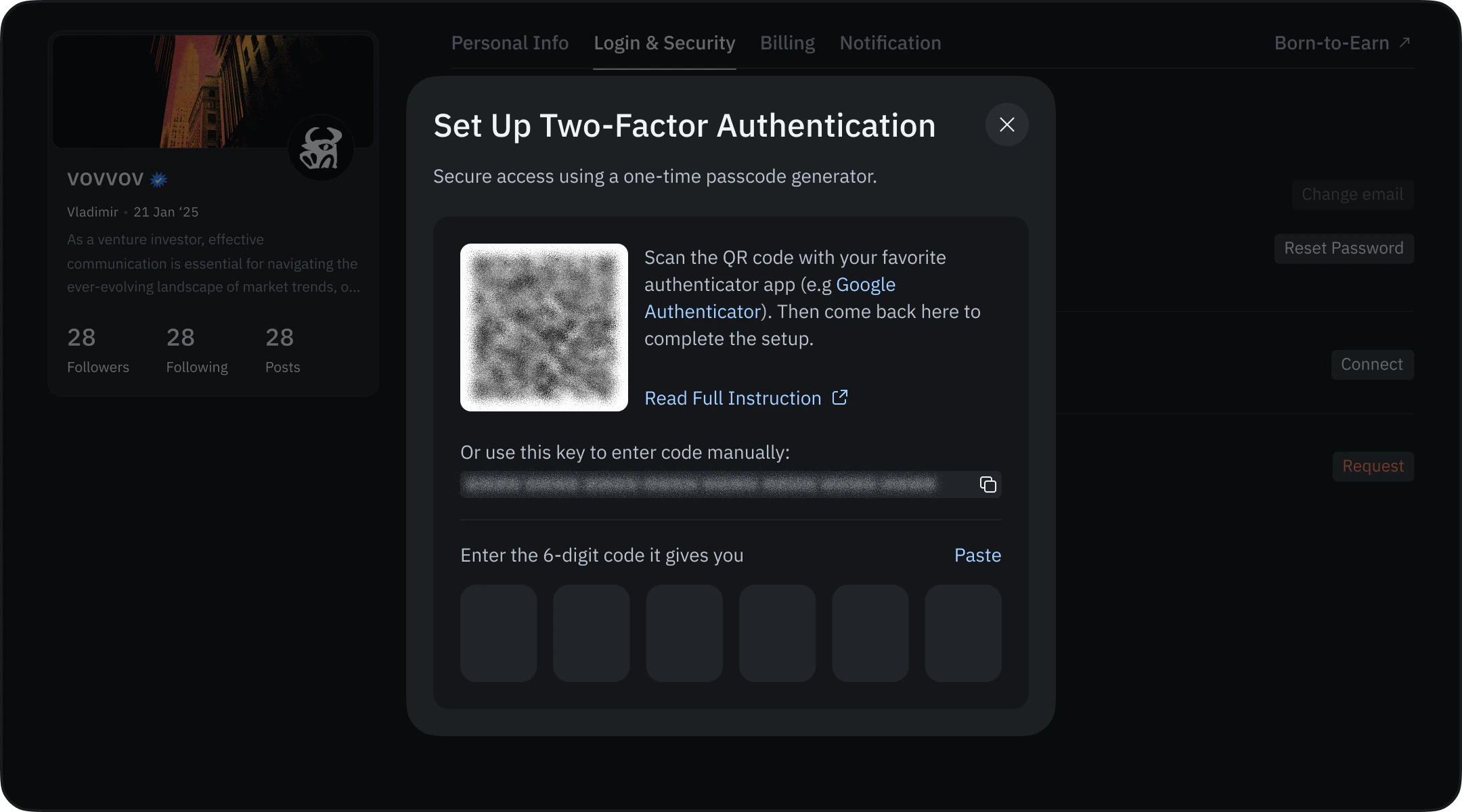
- A QR code to scan with an authenticator app (e.g., Google Authenticator)
- A manual setup key if you prefer entering it by hand
3. Enter the 6-digit authentication code
Type the current 6-digit code from your authenticator app into the field and select Verify. If something is wrong, you may see messages like:- “The code you entered is incorrect.”
- “This code has expired.”
- “Too many attempts. Please wait a few minutes.”
Saving Backup Recovery Codes
After verification, the system will show your Backup Codes. These codes:- Can be used if you lose access to your authenticator app
- Are displayed only once
- Should be stored securely
When done, select I’ve Saved Them to finish activation. Your profile settings will now show 2FA as Enabled.
Using 2FA During Login
When 2FA is enabled, an additional verification step appears after entering your email and password.1. Enter the 6-digit code from your authenticator app
Open the app and type the current 6-digit code. If the code is expired or invalid, you may see:- “That didn’t work. Make sure the code hasn’t expired and try again.”
2. Using a backup recovery code
If you do not have access to your authenticator app:- Select Use recovery code instead
- Enter one of the single-use backup codes you saved during setup
Disconnecting 2FA
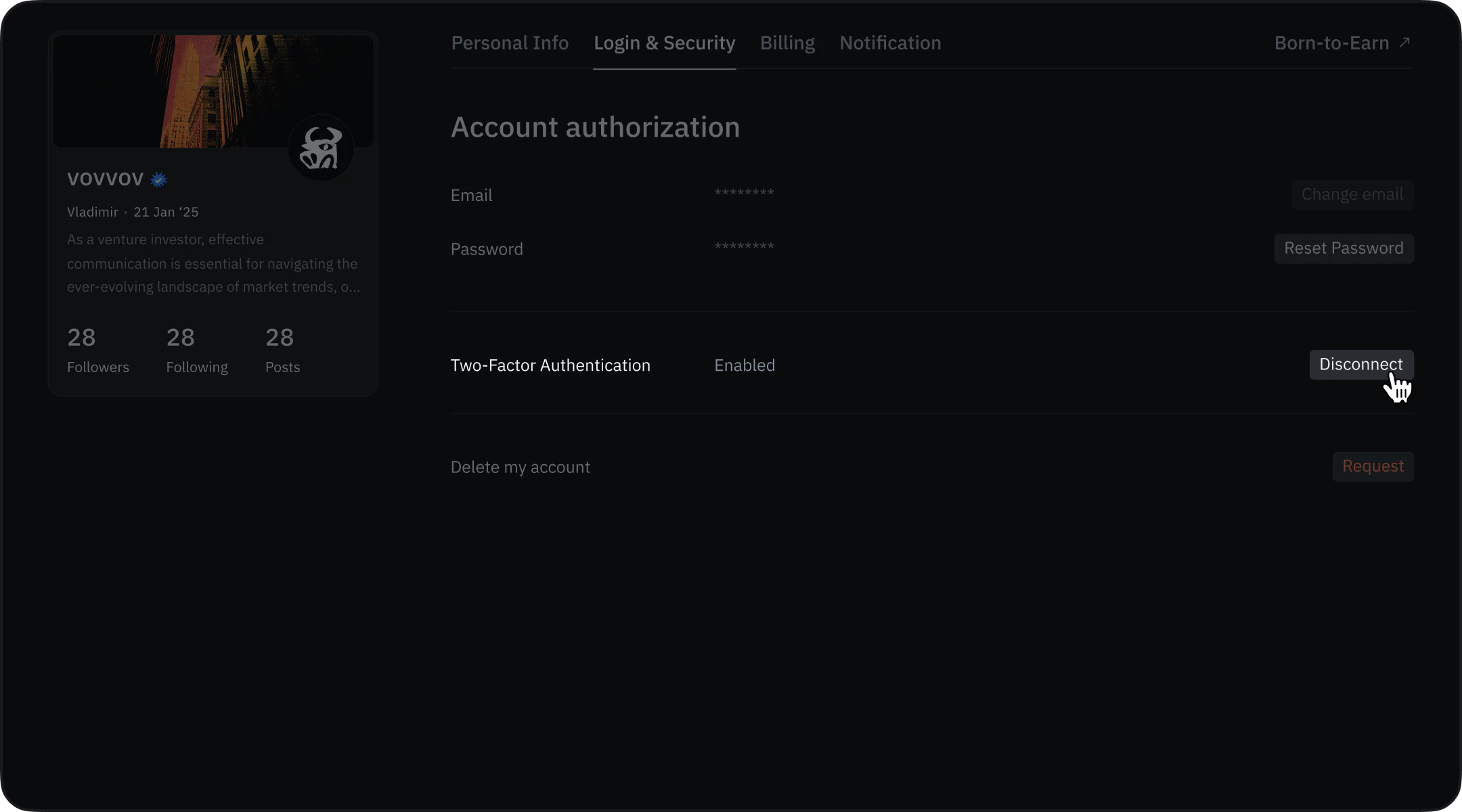
1. Go to Settings → Login & Security
In the 2FA section, select Disconnect.2. Confirm removal
To turn off 2FA, enter either:- A valid 6-digit code from your authenticator app
- One of your backup recovery codes
Personal API Tokens
Settings → Login & Security also holds Personal API Tokens, directly under Two-Factor Authentication. A token is the key for the Platform API: it lets your own code, notebooks and bots pull TakeProfit market data.- Tokens are available on paid plans. Without a subscription the block shows Upgrade Plan and Generate, which opens the plans page.
- Generate New Token asks for a name and shows the full token only once — copy it then. Afterwards the list shows a masked prefix and a Revoke button.
- If your subscription ends, all your tokens are revoked automatically.
Troubleshooting
If you see messages such as:- “We couldn’t process your request.”
- “Something went wrong. Please try again.”
- “Couldn’t Complete Setup.”
If errors persist, contact TakeProfit Support.