

What is the TakeProfit MCP Server?
LLMs can now write, convert, validate, and explain Indie code using the TakeProfit MCP Server. Get AI-Powered Indie Development Help:- Ask LLM to write complete indicators from scratch based on your trading ideas
- Get explanations of complex algorithm combinations and how they work together
Discover Indicators
- Search the community Marketplace for published indicators by name or description — the LLM can recommend an existing indicator instead of writing one from scratch
- Search built-in indicators by name, title, or abbreviation
Work with Your Own Scripts and Watchlists
The server does not stop at the language. Once you are signed in, it also reaches the private data behind your account:- Your private scripts — list what is in My scripts, load a script into the conversation, edit it, and save it back to the platform
- Alerts — create, edit, pause, and review alerts, including alerts on a private indicator you never published
- Watchlists — list them, read what is in them with live quotes, create new ones, and add or remove instruments
- Ask “how would I implement X indicator?” and get working code examples
- Understand the logic behind technical analysis through code explanations
- Learn Indie best practices through AI-guided development
- “Create a momentum indicator that combines RSI and MACD divergence”
- “Help me build a support/resistance detector using price action”
- “Explain how to implement a custom volatility-based stop loss”
- “Write an indicator that detects chart patterns like triangles”
Step-by-Step Setup Instructions
- Claude
- Claude Code
- Codex
- Cursor
- VSCode
- mcp-remote
Claude and Claude Desktop integration
Step 1: Add custom connector
- Download, install & sign in / sign up to Claude Desktop or login using web-interface of Claude
- Go to Settings -> Connectors in Claude or Claude Desktop and click “Add custom connector”
-
Enter the
TakeProfitname and urlhttps://mcp.takeprofit.com/mcp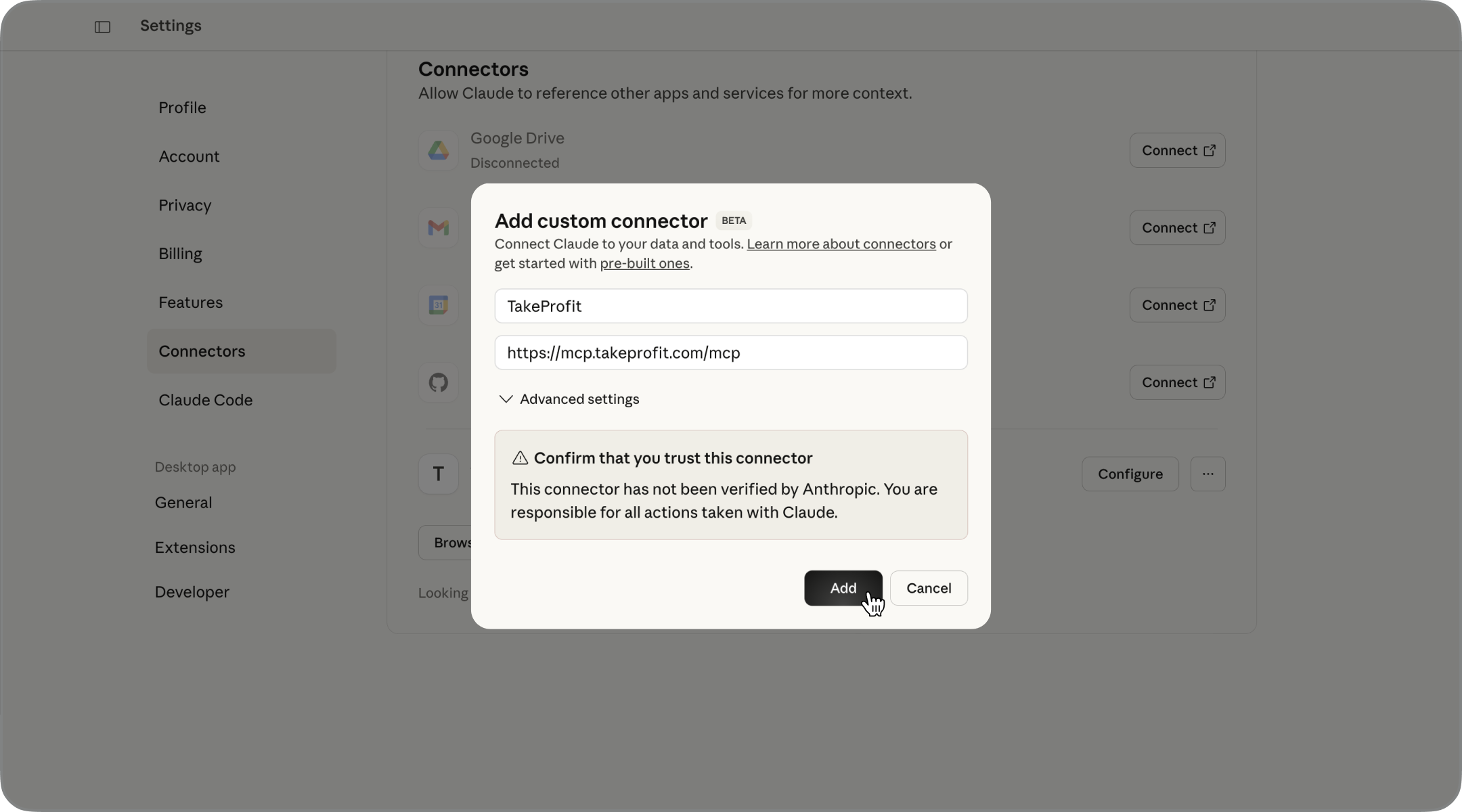
-
Press
Configurebutton for new connector, make sure all the tools are turned on and chooseAllow unsupervisedfor all tools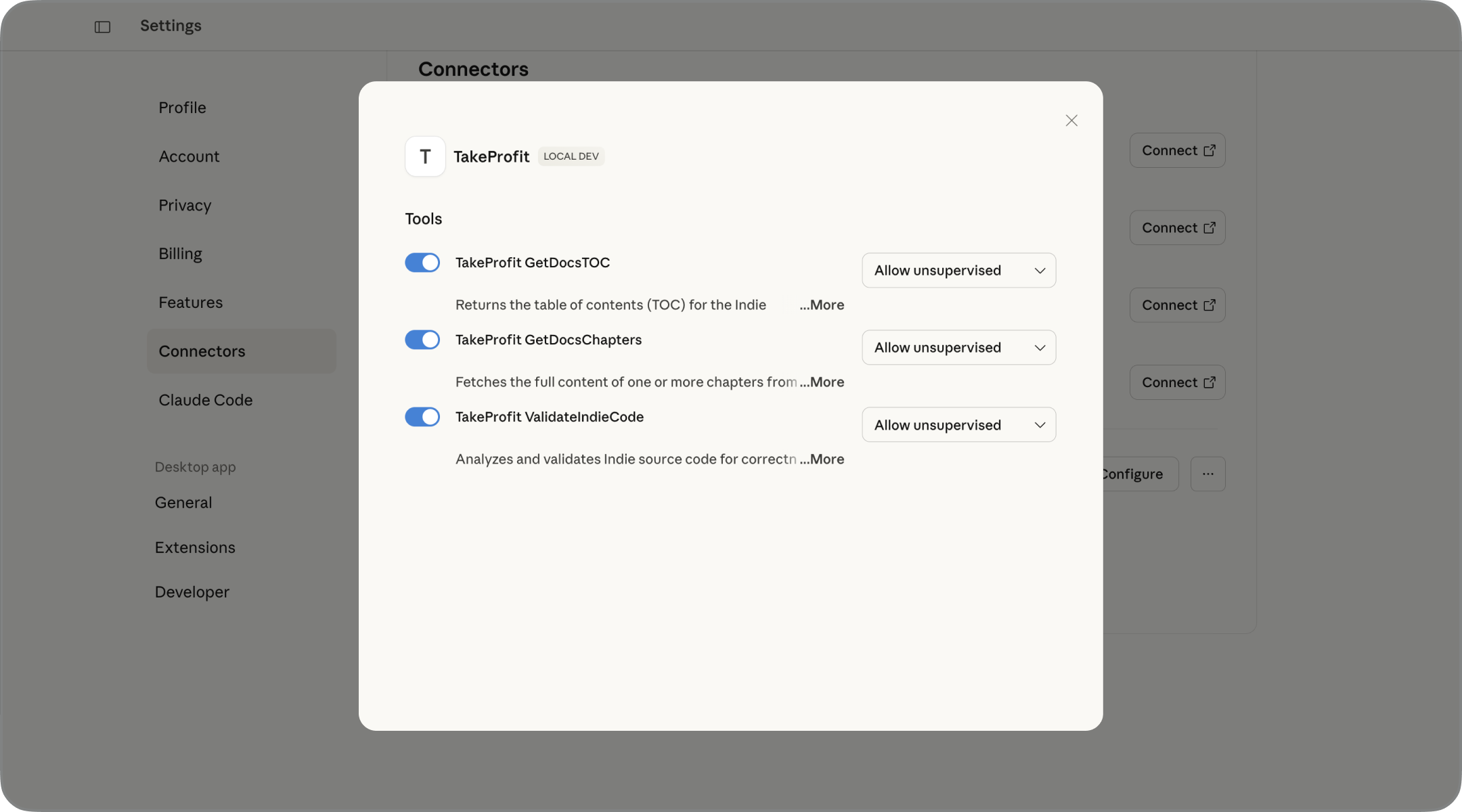
Step 2: Verify Functionality
- Exit the settings and return to the chat window
- Ask to
get the Indie docs TOC using TakeProfit MCPor togenerate SMA indicator in Indie language and validate this using TakeProfit MCPand watch the AI execute the technical workflow for you.
Test Your Setup
Try asking LLM one of these questions to test the connection: “Can you show me the documentation for the RSI algorithm?” “Help me create a simple moving average indicator in Indie” “Validate this code: [paste some Indie code]” “What algorithms are available for calculating Bollinger Bands?” If the MCP server is working correctly, LLM will respond using Indie documentation and logic. Once you receive generated code, test it by pasting it into the indicator code editor on the TakeProfit platform to verify that it runs without errors.Ready-made Indie prompts
The server ships the same Indie know-how that the platform’s own AI Chat uses: the language rules, the common mistakes and their fixes, and a step-by-step workflow for each kind of task. You get it in three ways. Prompts. Applications that support MCP prompts list them as ready-made commands, for example in the slash-command menu of Claude or Cursor:
The playbook tool.
TakeProfit_GetPlaybook returns the rules plus the steps for one task — write, edit, fix, optimize or migrate — or a single section of them. The server tells the assistant to read it before it writes or changes Indie code, so you rarely need to ask.
Hints in tool results. Creating or loading a script returns the playbook along with it, and a failed validation comes back with the fixes that match the error. An assistant that skips the instructions still gets the rules where it needs them.
Working with your platform data
Everything in this section runs against your own account, so you are asked to authorize the connection to TakeProfit before any of it works. After that the assistant sees exactly what you see on the platform, and nothing more.Your private scripts
The server reaches the private indicators in My scripts, not only the code written in the current conversation. That closes the loop between the chat and the IDE: pick up a script you started on the platform, work on it with the assistant, and save the result back.- List returns your platform indicators and the assistant’s own working copies together, newest first. Each row says whether the working copy is saved on the platform and whether a newer platform version already exists. Temporary scripts are never listed.
- Load brings one exact version of a private script into the conversation, where it can be read, edited, and validated. Loading never exposes built-in, published, or another user’s source code.
- Save writes it back. The first save creates a new private indicator in My scripts; a later save on a script that is already linked creates its next version. A working copy with unsaved local changes is never silently overwritten.
- Once a private indicator is saved, you can put an alert on one of its plots straight away — publishing it to the Marketplace is not required.
Scripts and versions written this way land in My scripts on the platform like any other indicator — open the IDE to review the code, or add the indicator to a chart from there.
Watchlists
The assistant can read and edit your watchlists, which is the fastest way to answer questions about a whole list at once instead of one ticker at a time.- List returns your own watchlists with their titles and how many instruments each one holds. Built-in lists are not exposed — duplicate one into My Watchlists first if you want the assistant to work with it.
- Read returns everything stored in one list, optionally with live quotes for the whole list in a single request — the basis for “which of my names are up today” style questions.
- Create makes a new list, optionally pre-filled with up to 50 instruments.
- Edit adds and removes instruments in an existing list; both directions go in one request, so “swap AAPL for MSFT” is a single change.
- Delete removes a list permanently. The tool requires the exact current title as confirmation, so an assistant that mixed up two similar lists is refused instead of deleting the wrong one.
An instrument is stored as a ticker and an exchange together, so the assistant resolves the pair first. If a name is stored on a different venue than you asked for, it will say which one — check it before you read the quotes as your own.
Strategy backtests
The assistant can run a strategy through history and read the result, so you can write a strategy, test it and tune it in one conversation.- Strategy info reads a strategy’s parameters with their types, defaults and options before a run. It works for a script the assistant is editing and for a strategy on the platform you have access to. Indicators cannot be backtested — only strategies.
- Run simulates the strategy on one instrument and timeframe, over a date range or a preset history depth, with your parameter values. It returns the report metrics and the most recent orders and trades.
- Report reads the same run again and pages through its full order and trade history, up to 500 rows a page. It never starts a new calculation.
- Release frees a run you no longer need. Runs also expire on their own: each response says when, and an expired run is not recreated silently — ask for a new one.
To look at the same strategy with charts, an equity curve and the full report, open it in the Strategy/Backtesting widget.
Alerts
Alert management over MCP is covered in Alerts, including the full tool list.Notes
Claude Account Requirements
-
You’ll need a Claude account to use this integration. While it technically works with any account, having a paid plan is strongly recommended so that Claude can properly handle longer prompts and return complete responses:
- Claude Pro ($20/month): Suitable for most scripts and general usage
- Claude Max ($100/month): Provides the largest context window, ideal for longer or complex scripts
💡 Check current pricing plans here: https://www.anthropic.com/pricing
Performance Notes
- Works best for code up to ~200-300 lines
- If your script is too long, try splitting it across multiple prompts or chats
- Modern LLM can usually finish or patch incomplete scripts when prompted correctly
Common Issues and Solutions
”node not found” Error
- Make sure Node.js is installed correctly
- Restart your computer after installation
- On Windows, check that Node.js is in your PATH environment variables
MCP Server Won’t Connect
- Check your internet connection
- Make sure the configuration file is saved correctly
- Try restarting the application
- Verify Node.js is working by running
node --versionin command line