> ## Documentation Index
> Fetch the complete documentation index at: https://takeprofit.com/docs/llms.txt
> Use this file to discover all available pages before exploring further.
# Stock Screener Widget
TakeProfit Stock Screener is a powerful tool for stock selection and strategy development based on fundamental company metrics. It helps you identify investment and trading opportunities using over 80 different parameters and filters.
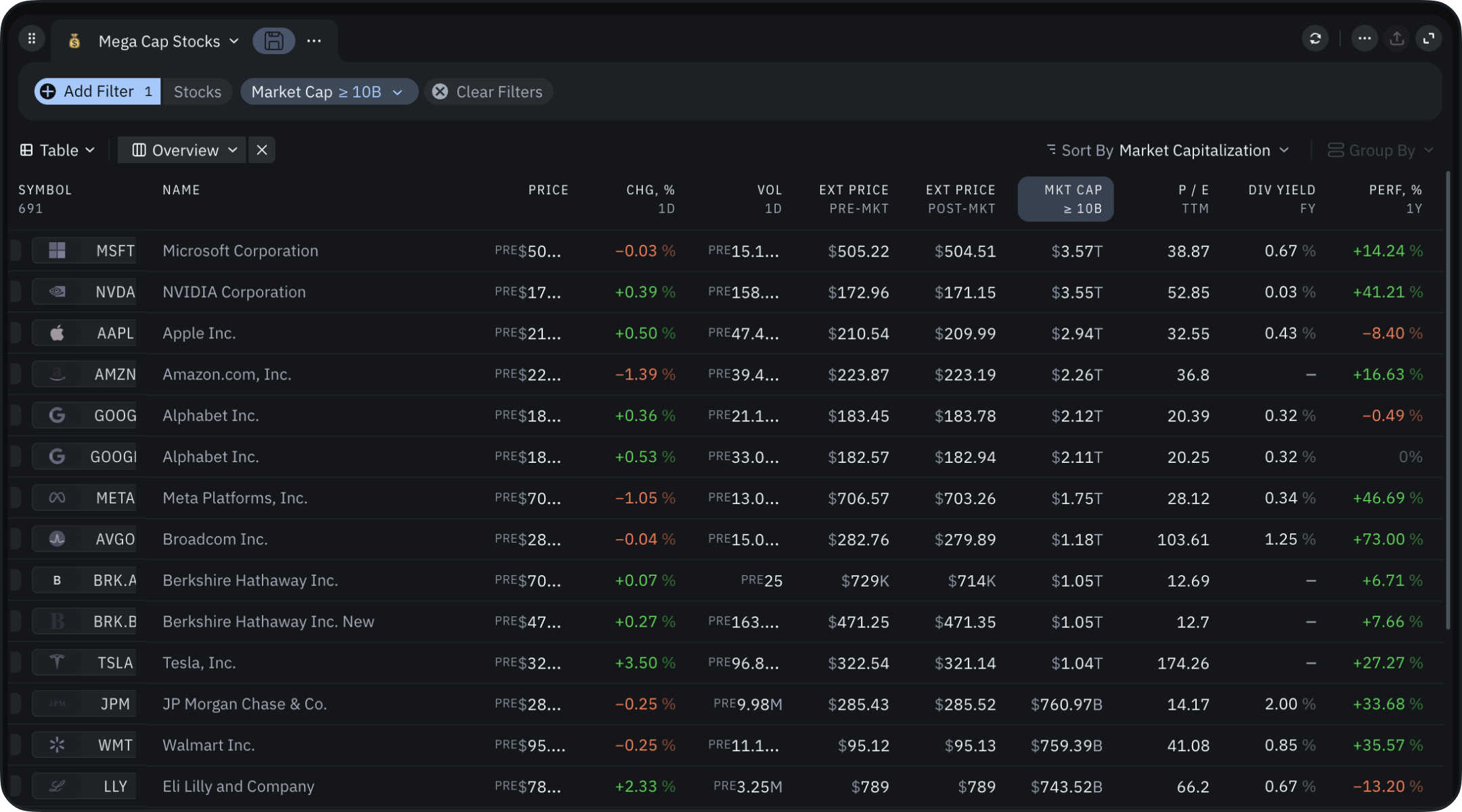 ## Core Specifications
* Coverage: US stock market (\~5000 companies)
* 100+ screening parameters including pre- and post-market price data in filters and column sets
* Multiple time periods: TTM, Fiscal Year, CAGR3/5 years
* Advanced visualization options (including list, table, heatmap)
* Auto refresh of search results: 30 seconds, every minute, every 3 minutes, disable refresh
* The ability to share your screener with users.
## Getting Started
1. Add the screener widget to your workspace from Widget Hub or choose from pre-built templates
2. Select your initial filters or choose built-in screeners
3. Begin exploring results in your preferred visualization mode.
## Setting Up Your Screener
There are 4 ways to select stocks:
* Use a Built-in screener template
* Modify existing Built-in screeners
* Duplicate and customize Built-in screeners
* Create a blank screener, removing the default filters.
## Accessing Screeners
1. Click the screener name in top-right corner (default: "Mega cap stocks")
2. Choose from:
* Built-in screeners
* My screens tab (your saved screeners)
* "Create screener" button (start from scratch)
* Favorites (Built-in or custom screeners can be added).
## Working with Filters
1. Click "add filter" to include new parameters
2. Configure filters using:
* Manual range sliders
* Preset operators (below, enter, above)
* Time periods:
* TTM (Trailing Twelve Months)
* MRQ (Most Recent Quarter)
* Fiscal Year
* Year-over-Year growth
* CAGR 3Y/5Y (Compound Annual Growth Rate)
3. Click "Apply Changes" to update results.
## Core Specifications
* Coverage: US stock market (\~5000 companies)
* 100+ screening parameters including pre- and post-market price data in filters and column sets
* Multiple time periods: TTM, Fiscal Year, CAGR3/5 years
* Advanced visualization options (including list, table, heatmap)
* Auto refresh of search results: 30 seconds, every minute, every 3 minutes, disable refresh
* The ability to share your screener with users.
## Getting Started
1. Add the screener widget to your workspace from Widget Hub or choose from pre-built templates
2. Select your initial filters or choose built-in screeners
3. Begin exploring results in your preferred visualization mode.
## Setting Up Your Screener
There are 4 ways to select stocks:
* Use a Built-in screener template
* Modify existing Built-in screeners
* Duplicate and customize Built-in screeners
* Create a blank screener, removing the default filters.
## Accessing Screeners
1. Click the screener name in top-right corner (default: "Mega cap stocks")
2. Choose from:
* Built-in screeners
* My screens tab (your saved screeners)
* "Create screener" button (start from scratch)
* Favorites (Built-in or custom screeners can be added).
## Working with Filters
1. Click "add filter" to include new parameters
2. Configure filters using:
* Manual range sliders
* Preset operators (below, enter, above)
* Time periods:
* TTM (Trailing Twelve Months)
* MRQ (Most Recent Quarter)
* Fiscal Year
* Year-over-Year growth
* CAGR 3Y/5Y (Compound Annual Growth Rate)
3. Click "Apply Changes" to update results.