> ## Documentation Index
> Fetch the complete documentation index at: https://takeprofit.com/docs/llms.txt
> Use this file to discover all available pages before exploring further.
# Notes Widget
Notes widget is your personal research and idea repository on TakeProfit. Use it to capture trading insights, create detailed analysis, and store visual references while maintaining complete privacy until you choose to share.
## Key Features
* Write comprehensive posts or quick notes
* Add charts from TakeProfit or external images
* Private by default - only you can see your notes
* Available across all your workspaces.
## Getting Started
1. Drag Notes widget from Widget Hub to your workspace
2. Select a ticker (required for note creation)
3. Start capturing your ideas.
## Managing Notes
### Accessing Your Notes
* Click "All notes" in the top-left corner to view:
* Note titles
* Preview text or thumbnail images
* Last update timestamps
### Text Formatting
Format your notes using the same tools available in posts:
* Headers (H1-H2)
* Bullet and numbered lists
* Image and video embedding
* X (formerly Twitter) post integration
* Text highlights and callouts.
### Deleting Notes
1. Open All notes
2. Click three vertical dots next to the note
3. Select Delete Note: Deletion removes the note from all workspaces.
## Important Considerations
### Workspace Integration
* Notes automatically appear in all your workspaces
* Access your notes even in newly created workspaces
* Each note is linked to a specific trading instrument.
### Cryptocurrency Notes
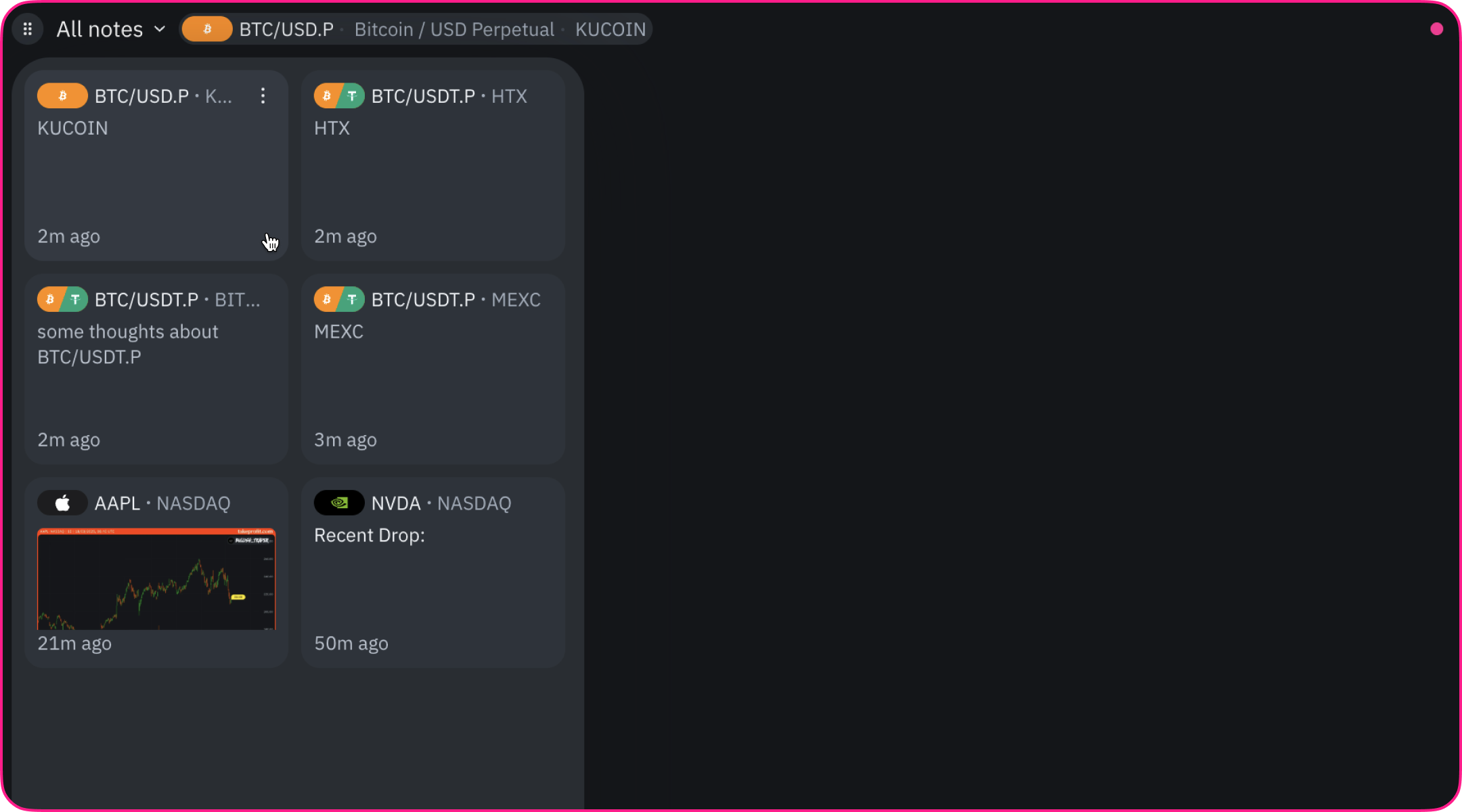 For cryptocurrency traders:
* Separate notes for identical pairs on different exchanges (Example: BTC/USDT notes are unique for each exchange)
* Useful for exchange-specific technical analysis.
### Privacy and Sharing
* All notes remain private by default
* Share individual notes when ready (coming soon)
* Control access to your trading insights.
For cryptocurrency traders:
* Separate notes for identical pairs on different exchanges (Example: BTC/USDT notes are unique for each exchange)
* Useful for exchange-specific technical analysis.
### Privacy and Sharing
* All notes remain private by default
* Share individual notes when ready (coming soon)
* Control access to your trading insights.