> ## Documentation Index
> Fetch the complete documentation index at: https://takeprofit.com/docs/llms.txt
> Use this file to discover all available pages before exploring further.
# LimeOrder Widget
LimeOrder Widget enables direct trading through [Lime Trading](https://lime.co/), a New York City-based agency broker. TakeProfit users who are Lime Trading clients can choose to trade using either TakeProfit's interface or Lime Trading's native platform.
Lime Order and Lime Portfolio are third-party widgets. Their interface and functionality are managed by Lime Trading.
## Setting Up Trading Widgets
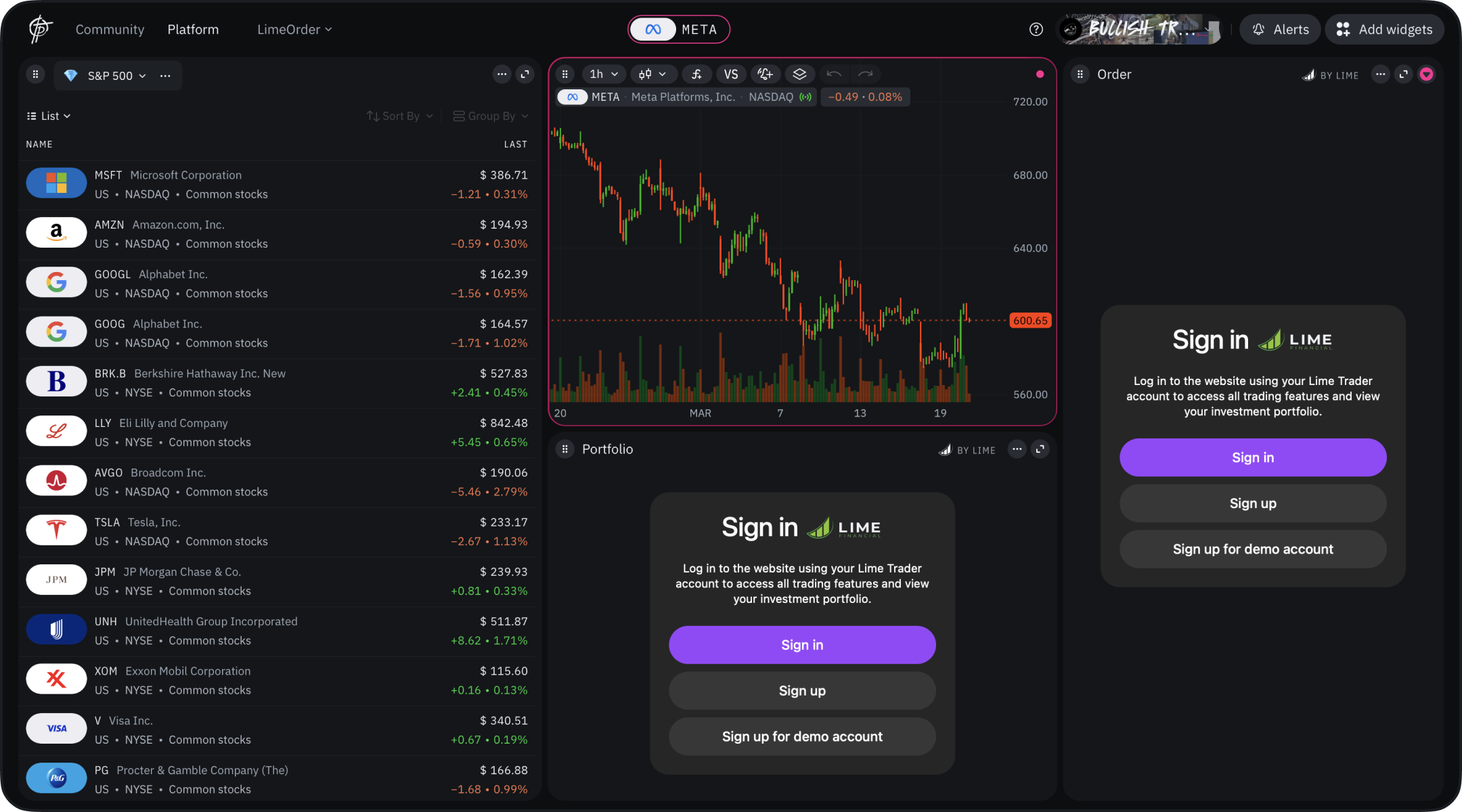 From Widget Hub, drag and drop:
* Lime Order Widget (for trading)
* Lime Portfolio Widget (optional, for viewing available instruments)
## Authentication Process
1. Sign in to your Lime Trading account or register for a demo
2. In Lime Trading dashboard:
* Click "Go to trading"
* Choose between Lime Trader or TakeProfit
* Select TakeProfit to return to the platform
3. If prompted:
* Re-enter your Lime Trading credentials
* Wait for widget content to load
## Trading Functionality
From Widget Hub, drag and drop:
* Lime Order Widget (for trading)
* Lime Portfolio Widget (optional, for viewing available instruments)
## Authentication Process
1. Sign in to your Lime Trading account or register for a demo
2. In Lime Trading dashboard:
* Click "Go to trading"
* Choose between Lime Trader or TakeProfit
* Select TakeProfit to return to the platform
3. If prompted:
* Re-enter your Lime Trading credentials
* Wait for widget content to load
## Trading Functionality
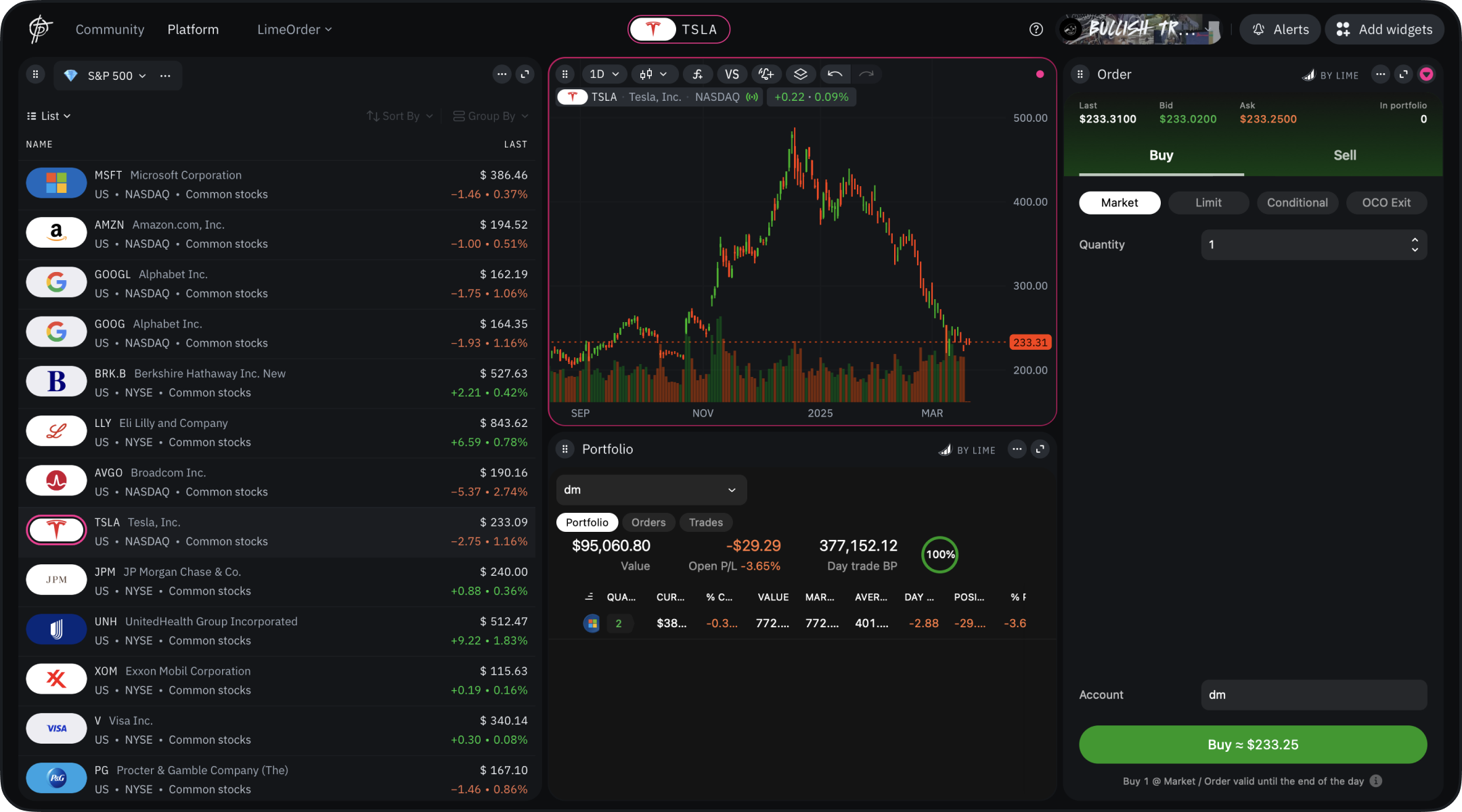 For detailed information about:
* Order placement
* Order management
* Portfolio monitoring
* Trading rules and guidelines
Please refer to [Lime Trading's technical documentation](https://lime.co/faq/).
For detailed information about:
* Order placement
* Order management
* Portfolio monitoring
* Trading rules and guidelines
Please refer to [Lime Trading's technical documentation](https://lime.co/faq/).