> ## Documentation Index
> Fetch the complete documentation index at: https://takeprofit.com/docs/llms.txt
> Use this file to discover all available pages before exploring further.
# Text Tools
## Text (Alt + Shift + T)
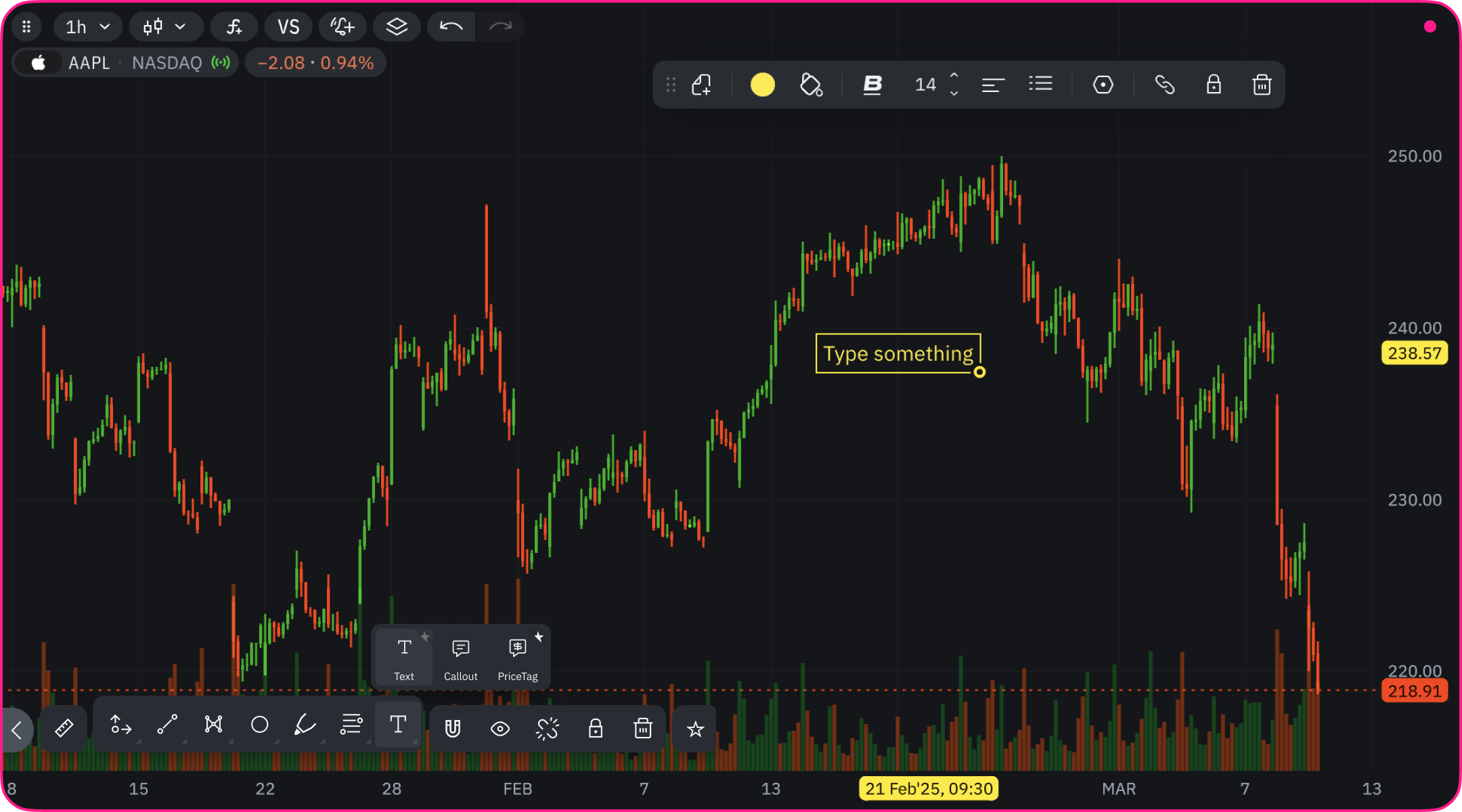 The Text tool allows you to add custom text annotations directly on the chart. Use it to add notes, analysis commentary, or important reminders.
### How to Use
1. Select the Text tool from the drawing toolbar
2. Click on the chart where you want to place your text
3. Type your message
4. Click outside the text box to confirm
### Practical Applications
* Add trading notes to specific price levels
* Mark important events on the chart
* Record analysis observations
* Create custom labels for patterns
* Document trend characteristics
### Customization Options
* Add and edit text directly on the chart or by using the dedicated text editor block found in the specific text settings menu
* Text formatting:
* Bold, italic, underline, strikethrough
* Font size adjustment
* Text alignment (left, center, right)
* Color settings:
* Text color
* Background color
* List formatting:
* Bulleted lists
* Numbered lists
### Precise Positioning
* Set exact price level in the Parameters settings
* Adjust position after placement by dragging
## Callout (Alt + Shift + Y)
The Text tool allows you to add custom text annotations directly on the chart. Use it to add notes, analysis commentary, or important reminders.
### How to Use
1. Select the Text tool from the drawing toolbar
2. Click on the chart where you want to place your text
3. Type your message
4. Click outside the text box to confirm
### Practical Applications
* Add trading notes to specific price levels
* Mark important events on the chart
* Record analysis observations
* Create custom labels for patterns
* Document trend characteristics
### Customization Options
* Add and edit text directly on the chart or by using the dedicated text editor block found in the specific text settings menu
* Text formatting:
* Bold, italic, underline, strikethrough
* Font size adjustment
* Text alignment (left, center, right)
* Color settings:
* Text color
* Background color
* List formatting:
* Bulleted lists
* Numbered lists
### Precise Positioning
* Set exact price level in the Parameters settings
* Adjust position after placement by dragging
## Callout (Alt + Shift + Y)
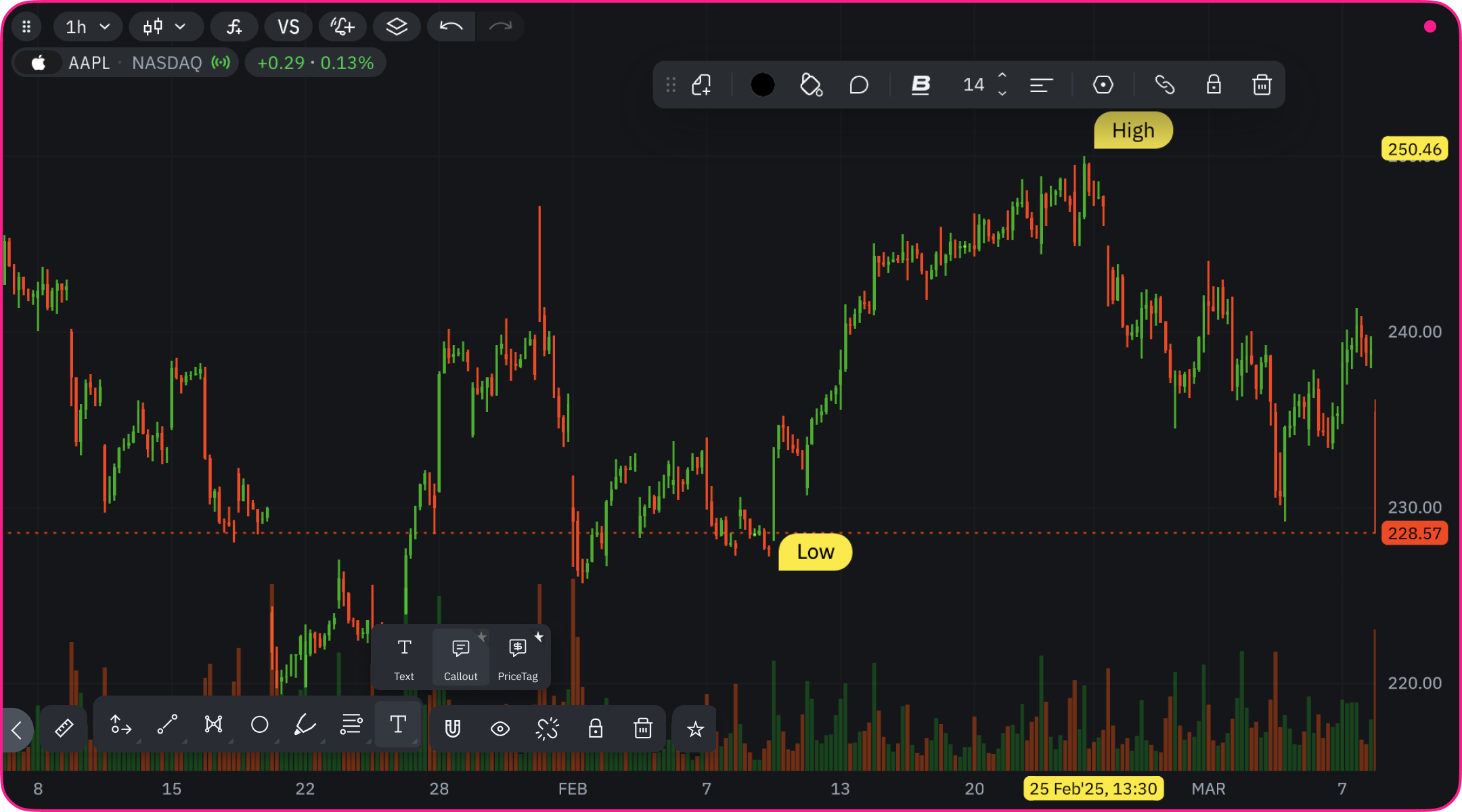 The Callout tool adds text with a directional pointer, allowing you to highlight specific chart points while adding descriptive text.
### How to Use
1. Select the Callout tool
2. Click on the chart to place the callout
3. Type your message
4. Adjust the direction of the pointer as needed
### Practical Applications
* Point to specific candlestick patterns
* Highlight breakout points
* Indicate entry/exit signals
* Call attention to gap areas
* Mark exact reversal points
### Customization Options
* Same text formatting options as Text tool:
* Bold, italic, underline, strikethrough
* Font size adjustment
* Text alignment options
* Color settings:
* Text color
* Background color
* Pointer position:
* Up, down, left, right
* Upper right, upper left
* Lower right, lower left
### Precise Positioning
* Set exact price level in Parameters settings
* Reposition both text box and pointer after placement
## Price Tag (Alt + Shift + G)
The Callout tool adds text with a directional pointer, allowing you to highlight specific chart points while adding descriptive text.
### How to Use
1. Select the Callout tool
2. Click on the chart to place the callout
3. Type your message
4. Adjust the direction of the pointer as needed
### Practical Applications
* Point to specific candlestick patterns
* Highlight breakout points
* Indicate entry/exit signals
* Call attention to gap areas
* Mark exact reversal points
### Customization Options
* Same text formatting options as Text tool:
* Bold, italic, underline, strikethrough
* Font size adjustment
* Text alignment options
* Color settings:
* Text color
* Background color
* Pointer position:
* Up, down, left, right
* Upper right, upper left
* Lower right, lower left
### Precise Positioning
* Set exact price level in Parameters settings
* Reposition both text box and pointer after placement
## Price Tag (Alt + Shift + G)
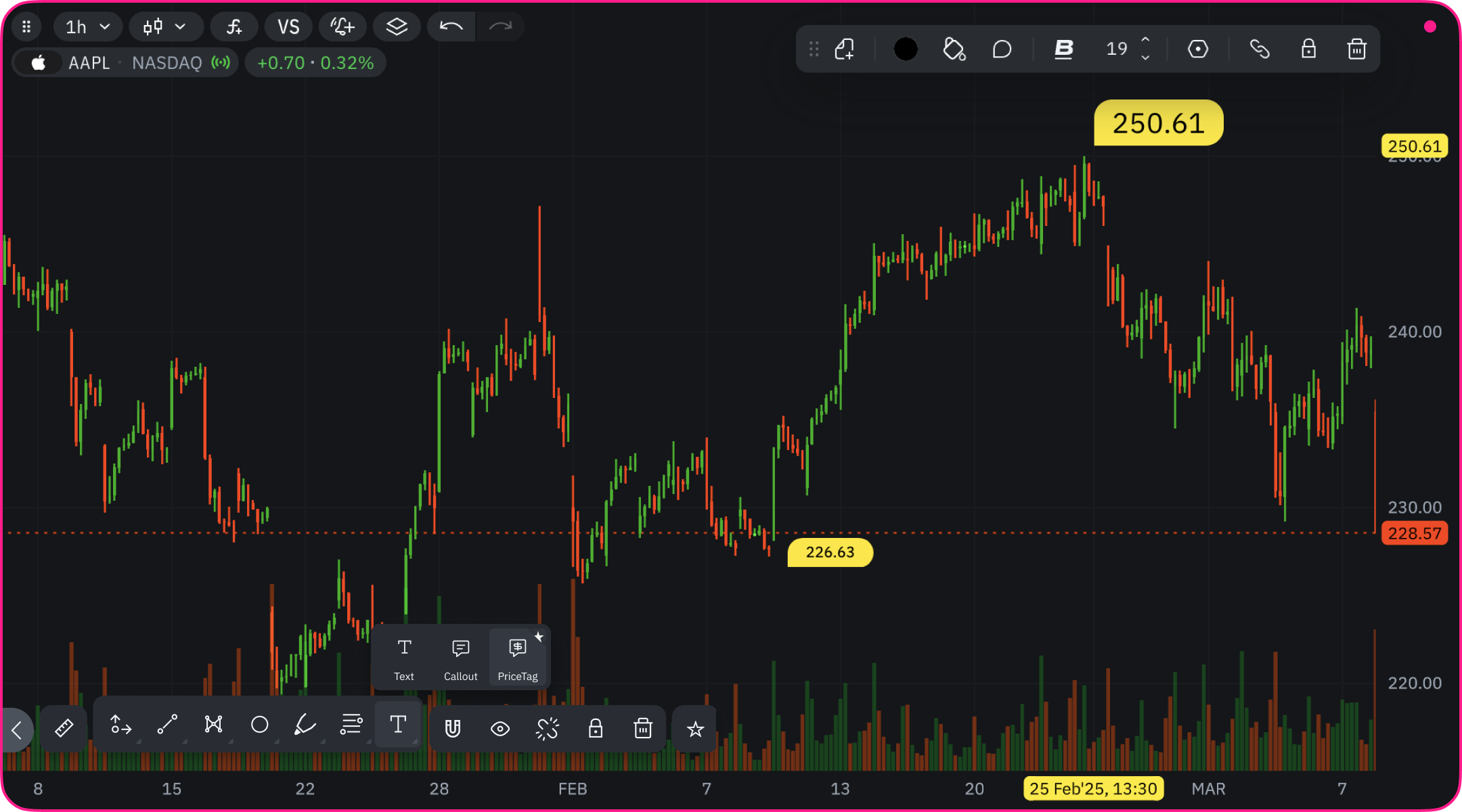 The Price Tag tool creates a labeled marker showing price information at specific chart points. It's perfect for highlighting key price levels.
### How to Use
1. Select the Price Tag tool
2. Click on the chart at the desired price level
3. Add custom text if needed
4. Adjust position as required
### Practical Applications
* Mark support and resistance levels
* Highlight important price thresholds
* Annotate historical highs and lows
* Label price targets
* Mark stop-loss or take-profit levels
### Customization Options
* Text formatting options:
* Bold, italic, underline, strikethrough
* Font size adjustment
* Text alignment choices
* Color settings:
* Text color
* Background color
* Pointer position:
* Up, down, left, right
* Upper right, upper left
* Lower right, lower left
### Precise Positioning
* Set exact price level in Settings
* Fine-tune position after placement
## Editing Text from the Settings Panel
You don't need to redraw a text object to change its wording. Any drawing that contains a text box — the **Text**, **Callout**, and **Price Tag** tools, as well as **line**, **circle**, and **rectangle** drawings — can be edited from its settings panel:
1. Select the drawing on the chart.
2. Open its **settings panel**.
3. Edit the text directly in the text-editor block, then adjust formatting (font, size, color, alignment) in the same panel.
The Price Tag tool creates a labeled marker showing price information at specific chart points. It's perfect for highlighting key price levels.
### How to Use
1. Select the Price Tag tool
2. Click on the chart at the desired price level
3. Add custom text if needed
4. Adjust position as required
### Practical Applications
* Mark support and resistance levels
* Highlight important price thresholds
* Annotate historical highs and lows
* Label price targets
* Mark stop-loss or take-profit levels
### Customization Options
* Text formatting options:
* Bold, italic, underline, strikethrough
* Font size adjustment
* Text alignment choices
* Color settings:
* Text color
* Background color
* Pointer position:
* Up, down, left, right
* Upper right, upper left
* Lower right, lower left
### Precise Positioning
* Set exact price level in Settings
* Fine-tune position after placement
## Editing Text from the Settings Panel
You don't need to redraw a text object to change its wording. Any drawing that contains a text box — the **Text**, **Callout**, and **Price Tag** tools, as well as **line**, **circle**, and **rectangle** drawings — can be edited from its settings panel:
1. Select the drawing on the chart.
2. Open its **settings panel**.
3. Edit the text directly in the text-editor block, then adjust formatting (font, size, color, alignment) in the same panel.