> ## Documentation Index
> Fetch the complete documentation index at: https://takeprofit.com/docs/llms.txt
> Use this file to discover all available pages before exploring further.
# Two-Factor Authentication (2FA)
Two-Factor Authentication adds another layer of security to your TakeProfit account. When 2FA is enabled, logging in requires both your password and a time-based one-time code from an authenticator app or a saved recovery code.
***
## Enabling Two-Factor Authentication
You can activate 2FA in your profile settings.
### 1. Open **Settings → Login & Security**
In the **Two-Factor Authentication** section, select **Setup 2FA**.
### 2. Scan the QR code or use the manual key
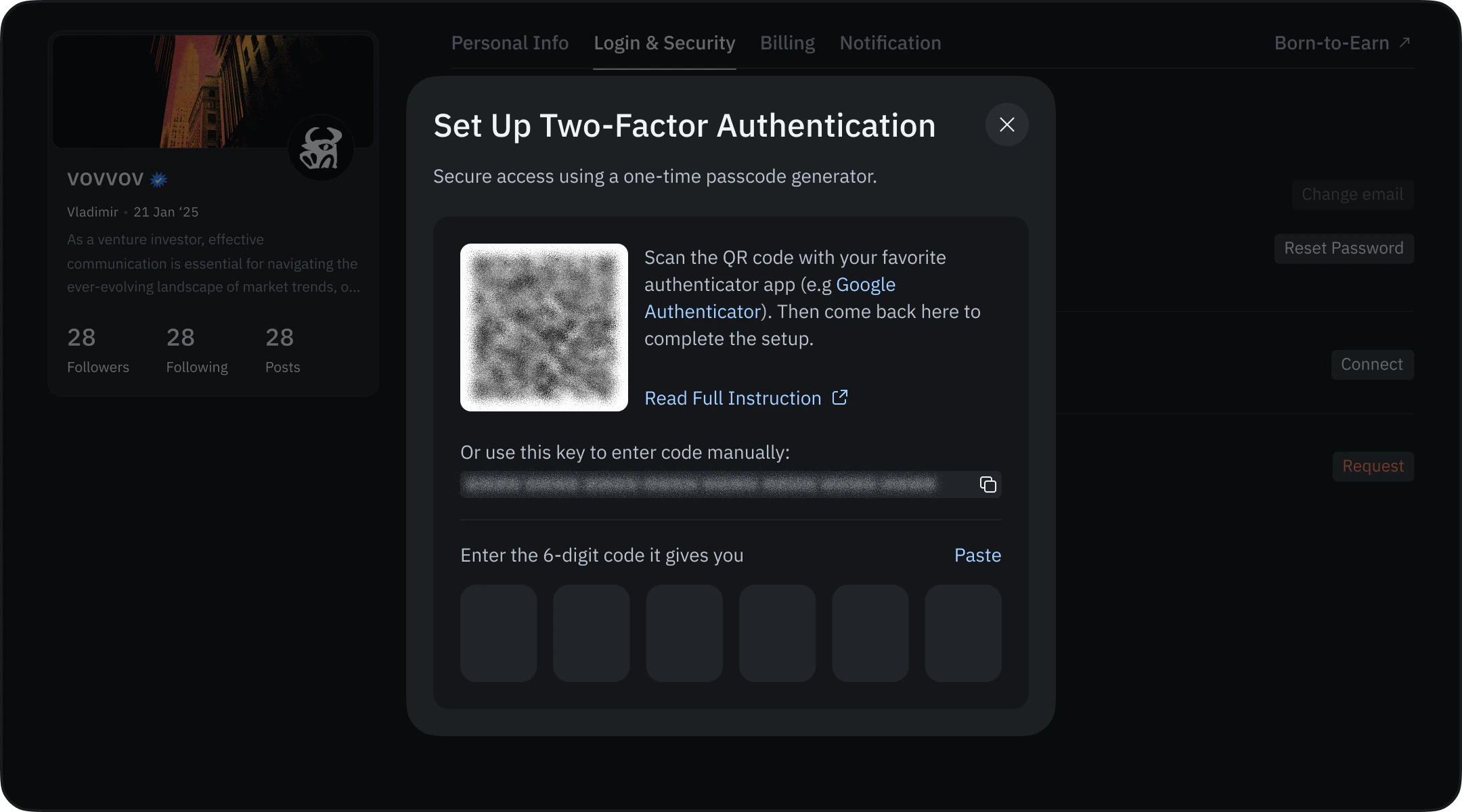 The setup dialog displays:
* A QR code to scan with an authenticator app (e.g., Google Authenticator)
* A manual setup key if you prefer entering it by hand
After adding the key, your authenticator app will start generating 6-digit one-time codes that refresh every 30 seconds.
### 3. Enter the 6-digit authentication code
Type the current 6-digit code from your authenticator app into the field and select **Verify**.
If something is wrong, you may see messages like:
* “The code you entered is incorrect.”
* “This code has expired.”
* “Too many attempts. Please wait a few minutes.”
When verification succeeds, the setup continues to the backup codes step.
***
## Saving Backup Recovery Codes
After verification, the system will show your **Backup Codes**.
These codes:
* Can be used if you lose access to your authenticator app
* Are displayed only once
* Should be stored securely
You can copy them using **Copy Codes** or save manually.\
When done, select **I’ve Saved Them** to finish activation.
Your profile settings will now show 2FA as **Enabled**.
***
## Using 2FA During Login
When 2FA is enabled, an additional verification step appears after entering your email and password.
### 1. Enter the 6-digit code from your authenticator app
Open the app and type the current 6-digit code.
If the code is expired or invalid, you may see:
* “That didn’t work. Make sure the code hasn’t expired and try again.”
### 2. Using a backup recovery code
If you do not have access to your authenticator app:
* Select **Use recovery code instead**
* Enter one of the single-use backup codes you saved during setup
Each backup code can be used only once.
***
## Disconnecting 2FA
The setup dialog displays:
* A QR code to scan with an authenticator app (e.g., Google Authenticator)
* A manual setup key if you prefer entering it by hand
After adding the key, your authenticator app will start generating 6-digit one-time codes that refresh every 30 seconds.
### 3. Enter the 6-digit authentication code
Type the current 6-digit code from your authenticator app into the field and select **Verify**.
If something is wrong, you may see messages like:
* “The code you entered is incorrect.”
* “This code has expired.”
* “Too many attempts. Please wait a few minutes.”
When verification succeeds, the setup continues to the backup codes step.
***
## Saving Backup Recovery Codes
After verification, the system will show your **Backup Codes**.
These codes:
* Can be used if you lose access to your authenticator app
* Are displayed only once
* Should be stored securely
You can copy them using **Copy Codes** or save manually.\
When done, select **I’ve Saved Them** to finish activation.
Your profile settings will now show 2FA as **Enabled**.
***
## Using 2FA During Login
When 2FA is enabled, an additional verification step appears after entering your email and password.
### 1. Enter the 6-digit code from your authenticator app
Open the app and type the current 6-digit code.
If the code is expired or invalid, you may see:
* “That didn’t work. Make sure the code hasn’t expired and try again.”
### 2. Using a backup recovery code
If you do not have access to your authenticator app:
* Select **Use recovery code instead**
* Enter one of the single-use backup codes you saved during setup
Each backup code can be used only once.
***
## Disconnecting 2FA
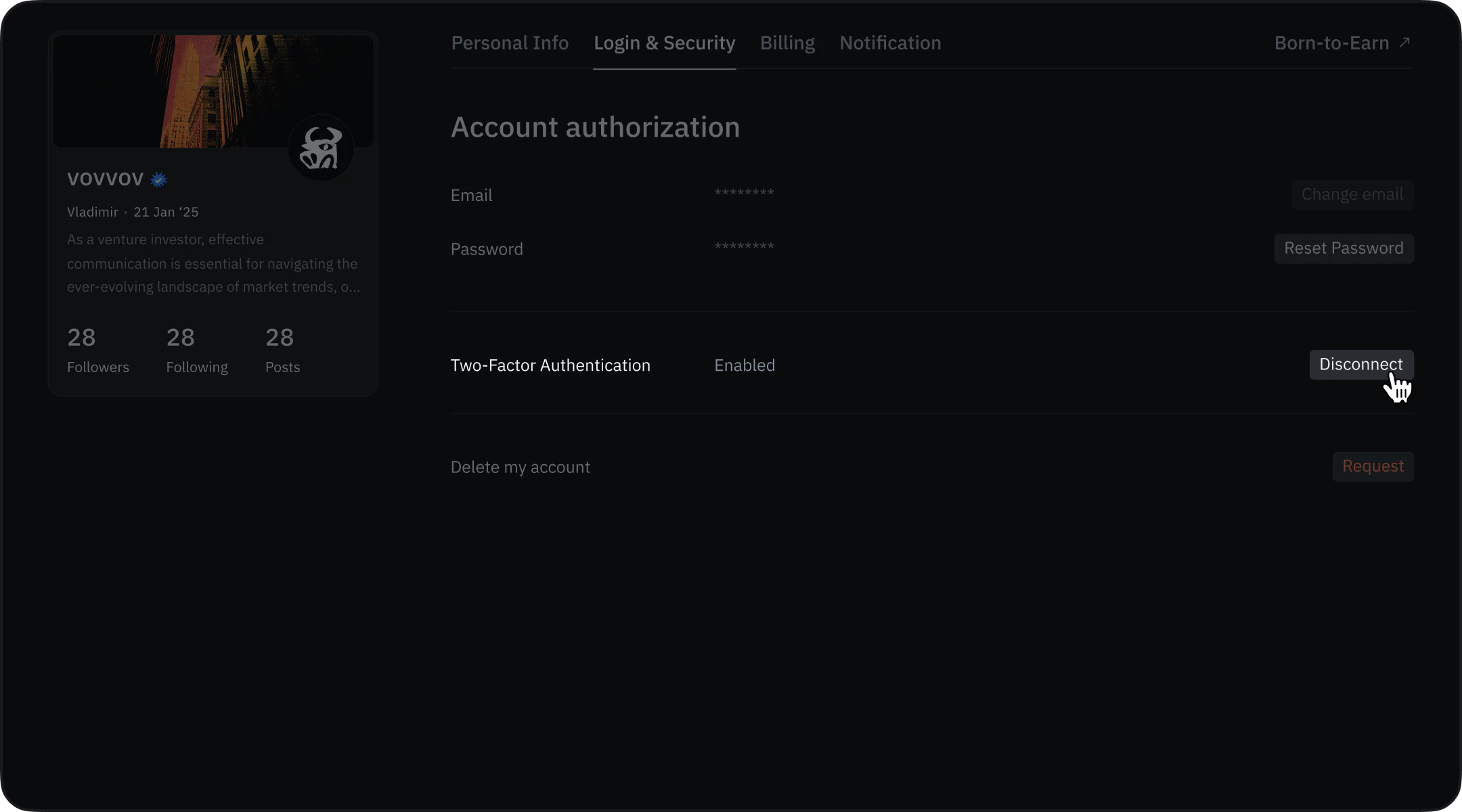 You may remove 2FA from your account at any time.
### 1. Go to **Settings → Login & Security**
In the 2FA section, select **Disconnect**.
### 2. Confirm removal
To turn off 2FA, enter either:
* A valid 6-digit code from your authenticator app
* One of your backup recovery codes
After successful confirmation, 2FA will be disabled and your profile will show **Two factor verification is turned off**.
***
## Troubleshooting
If you see messages such as:
* “We couldn’t process your request.”
* “Something went wrong. Please try again.”
* “Couldn’t Complete Setup.”
These usually indicate temporary verification issues. Try again after a short pause.\
If errors persist, contact [TakeProfit Support](mailto:support@takeprofit.com).
You may remove 2FA from your account at any time.
### 1. Go to **Settings → Login & Security**
In the 2FA section, select **Disconnect**.
### 2. Confirm removal
To turn off 2FA, enter either:
* A valid 6-digit code from your authenticator app
* One of your backup recovery codes
After successful confirmation, 2FA will be disabled and your profile will show **Two factor verification is turned off**.
***
## Troubleshooting
If you see messages such as:
* “We couldn’t process your request.”
* “Something went wrong. Please try again.”
* “Couldn’t Complete Setup.”
These usually indicate temporary verification issues. Try again after a short pause.\
If errors persist, contact [TakeProfit Support](mailto:support@takeprofit.com).