> ## Documentation Index
> Fetch the complete documentation index at: https://takeprofit.com/docs/llms.txt
> Use this file to discover all available pages before exploring further.
# Registration
## Creating a New Account
There are two ways to initiate the registration process:
1. Click the "Get Started" button in the top right corner of the website
2. Or start interacting with the platform at takeprofit.com/platform, where you'll be automatically prompted to register.
### Account Creation Options
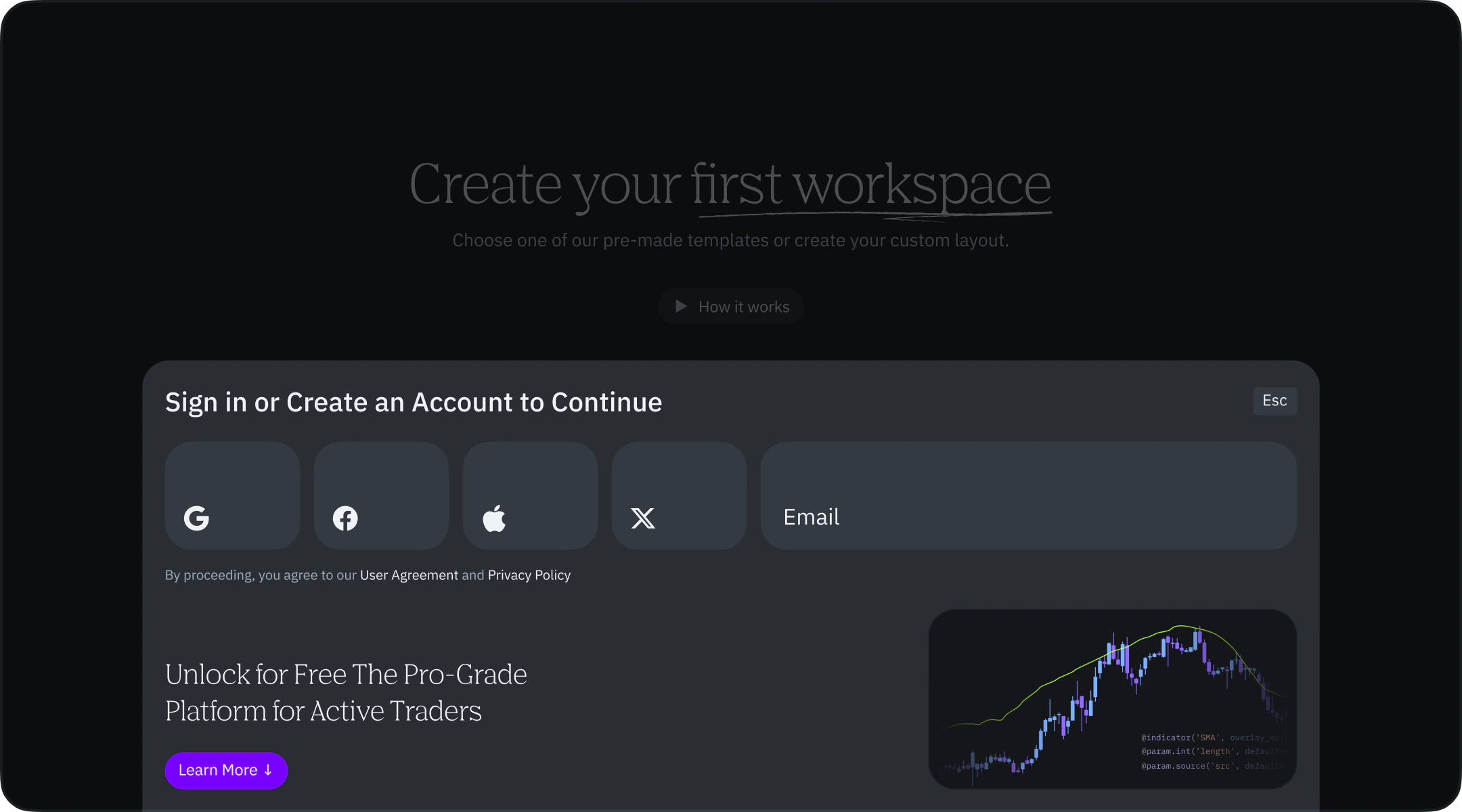 You can create your account using one of these methods:
1. Social media accounts:
* Google account
* Apple ID
* Facebook
* X (formerly Twitter).
2. Email registration.
When using social media authentication, no password is required. You'll always be able to log in using the same authentication method you chose during registration.
### Linking Your Social Media Email
If you want to login using the email address associated with your social media account, you'll need to verify your email ownership:
We'll send you a verification email
Click the link in the email
This will establish a connection between your email login and social media account
After verification, you can use either method to access your account.
### Account Verification Process
1. After selecting your registration method, you'll need to verify your account by confirming your email address:
* For social media registrations: The platform will use the email associated with your social media account
* If your social media account doesn't have an associated email, you'll be prompted to provide one.
2. Email Verification:
* You'll receive a verification email
* Either click the "Verify Email" button in the email
* Or copy and paste the verification link into your browser
3. After verification, you'll be automatically redirected to [takeprofit.com](http://takeprofit.com).
### Setting Up Your Username
The final step is creating your username:
You can create your account using one of these methods:
1. Social media accounts:
* Google account
* Apple ID
* Facebook
* X (formerly Twitter).
2. Email registration.
When using social media authentication, no password is required. You'll always be able to log in using the same authentication method you chose during registration.
### Linking Your Social Media Email
If you want to login using the email address associated with your social media account, you'll need to verify your email ownership:
We'll send you a verification email
Click the link in the email
This will establish a connection between your email login and social media account
After verification, you can use either method to access your account.
### Account Verification Process
1. After selecting your registration method, you'll need to verify your account by confirming your email address:
* For social media registrations: The platform will use the email associated with your social media account
* If your social media account doesn't have an associated email, you'll be prompted to provide one.
2. Email Verification:
* You'll receive a verification email
* Either click the "Verify Email" button in the email
* Or copy and paste the verification link into your browser
3. After verification, you'll be automatically redirected to [takeprofit.com](http://takeprofit.com).
### Setting Up Your Username
The final step is creating your username:
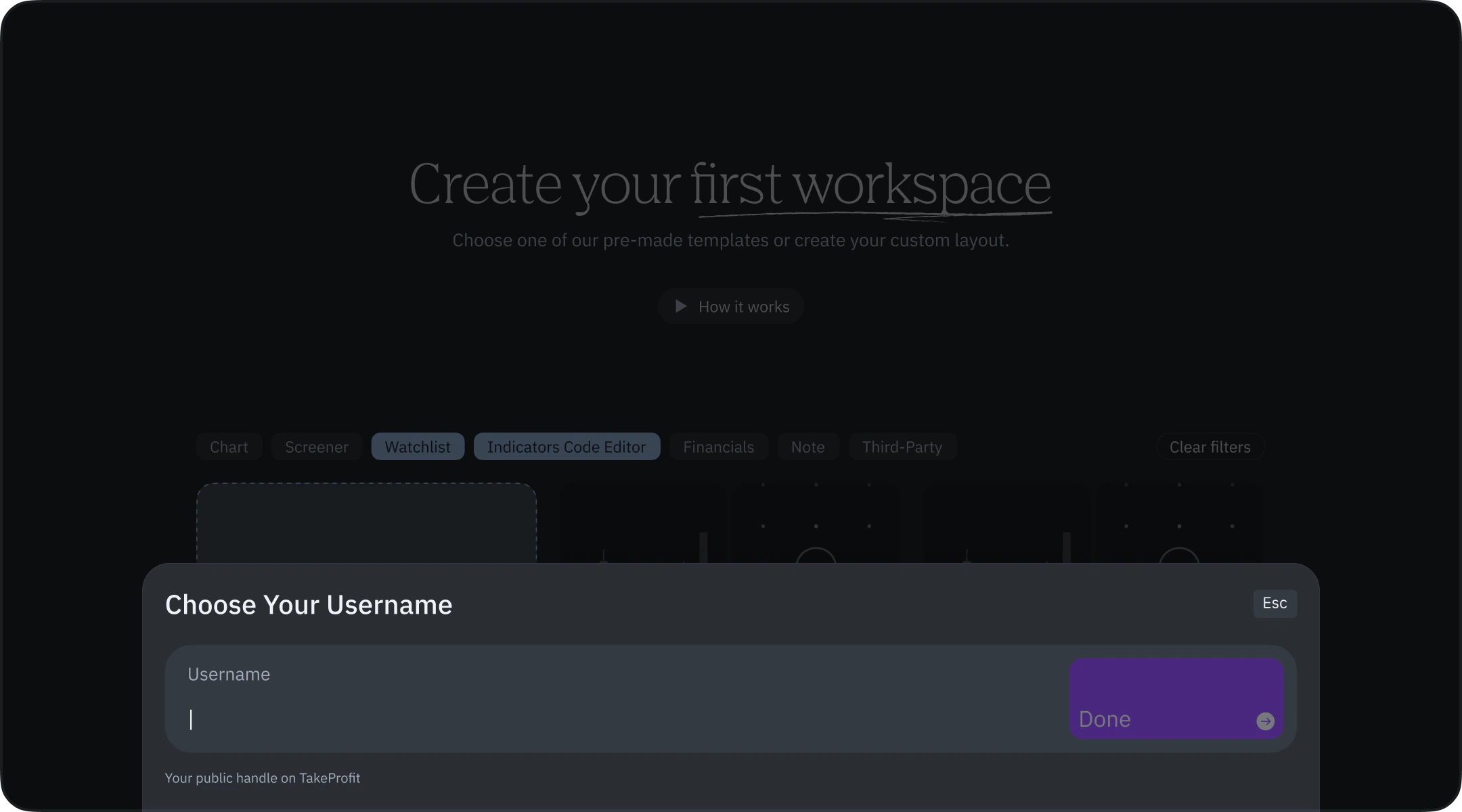 * By default, the system uses the first part of your email address.
* You can customize your username to any available name that meets the platform's requirements.
* The platform will provide real-time feedback on:
* Whether your chosen username is available
* If it meets the platform's naming requirements
* Any naming restrictions.
Once you complete these steps, you'll have full access to:
* Comment on posts
* Create your own posts
* Use the platform's features after activating your trial period.
* By default, the system uses the first part of your email address.
* You can customize your username to any available name that meets the platform's requirements.
* The platform will provide real-time feedback on:
* Whether your chosen username is available
* If it meets the platform's naming requirements
* Any naming restrictions.
Once you complete these steps, you'll have full access to:
* Comment on posts
* Create your own posts
* Use the platform's features after activating your trial period.