> ## Documentation Index
> Fetch the complete documentation index at: https://takeprofit.com/docs/llms.txt
> Use this file to discover all available pages before exploring further.
# Profile Settings
## Public Profile Settings
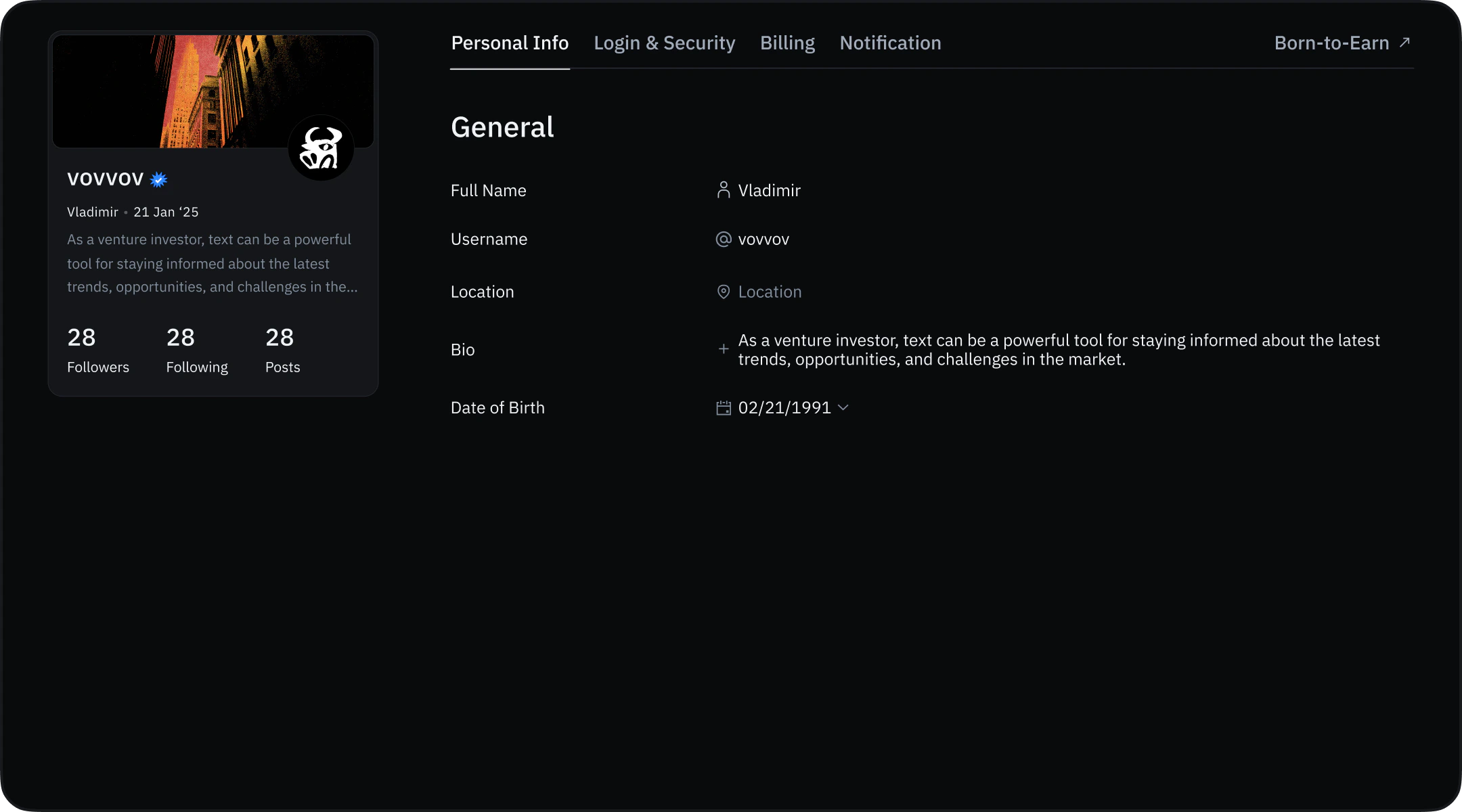 The Profile Settings section allows you to manage your public profile information, including:
* Full name
* Username
* Bio (up to 150 symbols)
* Date of birth
* Location
## Billing Settings
The Profile Settings section allows you to manage your public profile information, including:
* Full name
* Username
* Bio (up to 150 symbols)
* Date of birth
* Location
## Billing Settings
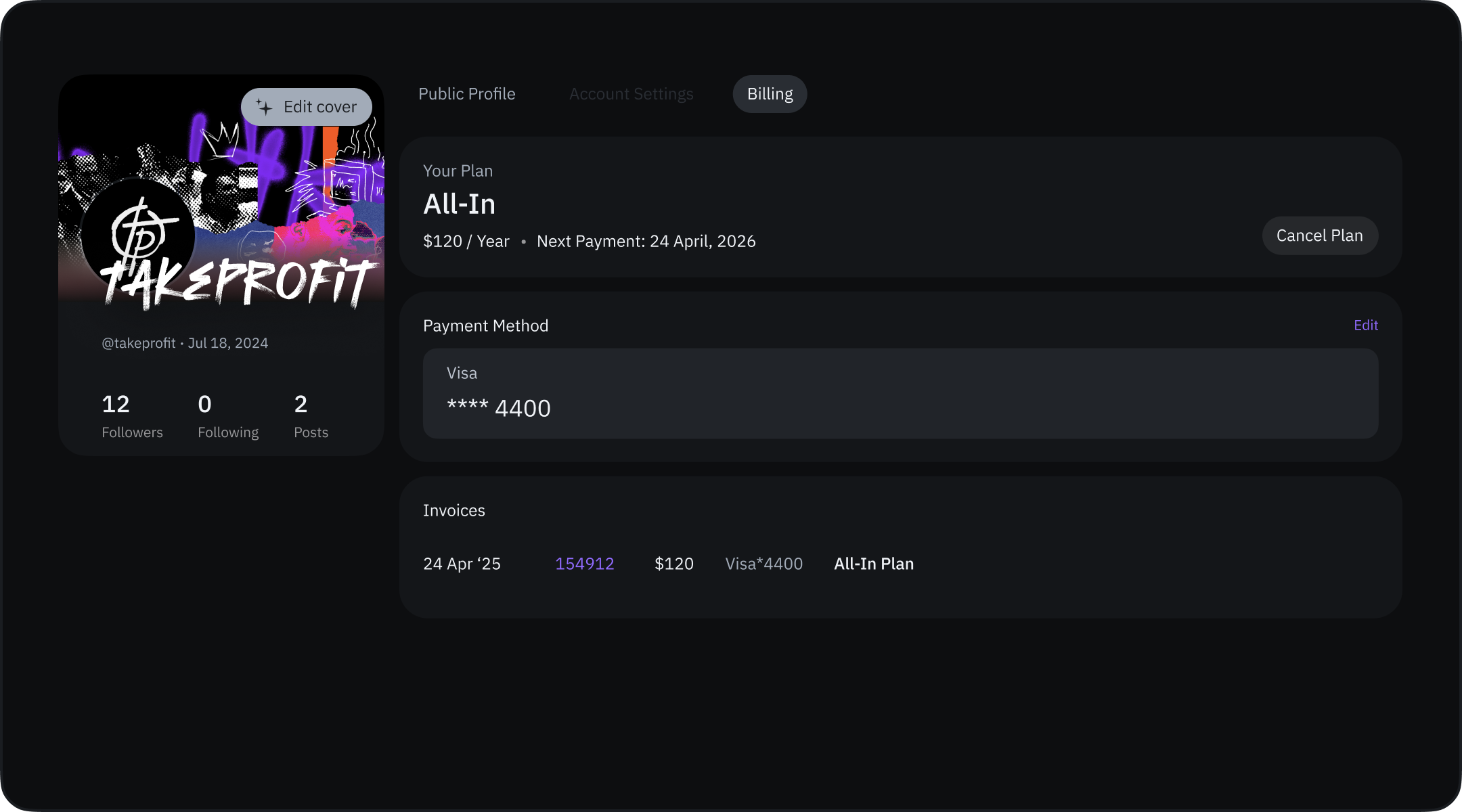 From the Billing tab, you can:
* Cancel subscription (if on a paid plan)
* Upgrade to All-in plan (if on Freeroll)
* Modify payment methods
* View billing history.
## Payment Methods
From the Billing tab, you can:
* Cancel subscription (if on a paid plan)
* Upgrade to All-in plan (if on Freeroll)
* Modify payment methods
* View billing history.
## Payment Methods
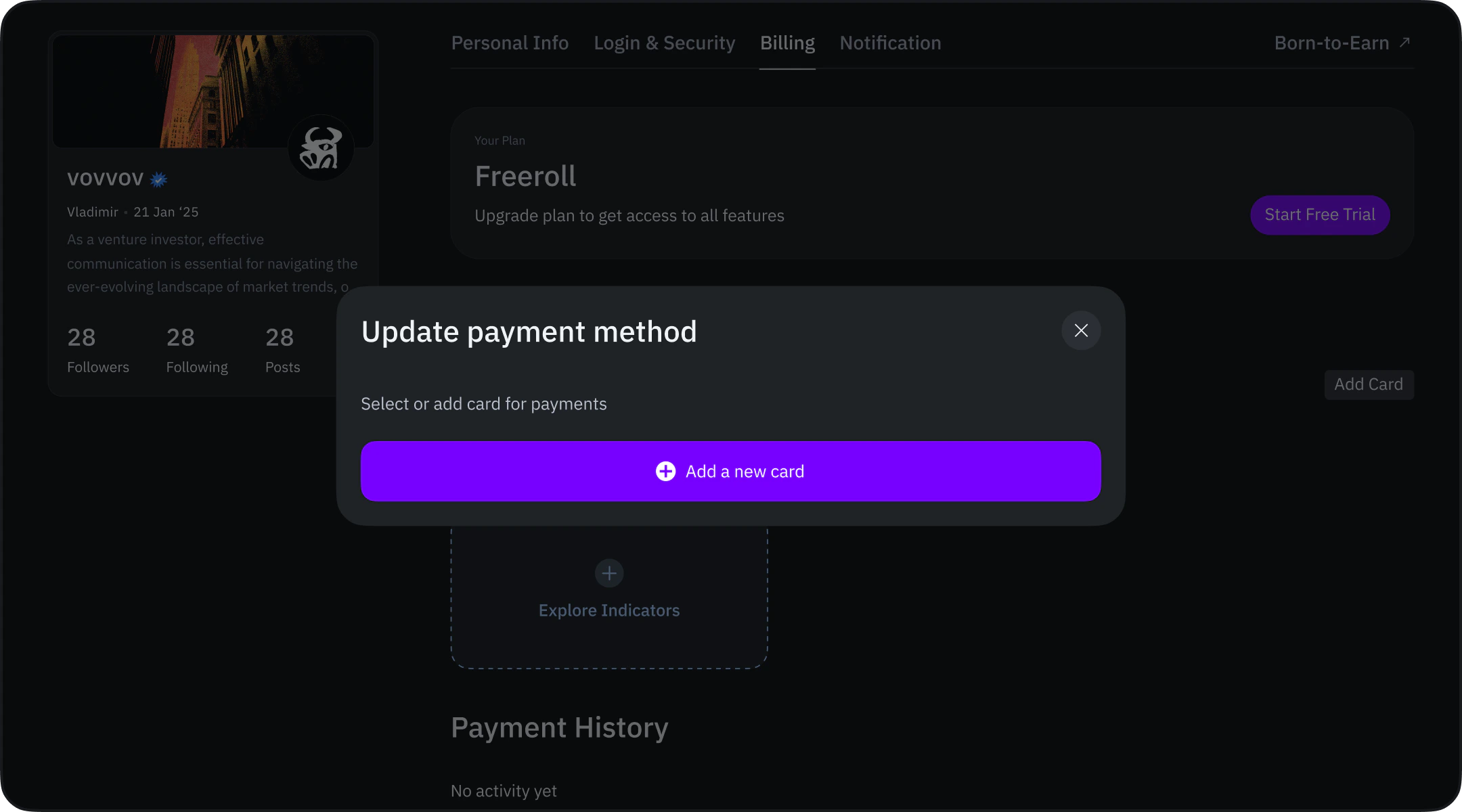 To manage your payment methods:
1. Click the "Edit" link.
2. In the "Update your payment method" dialog:
To manage your payment methods:
1. Click the "Edit" link.
2. In the "Update your payment method" dialog:
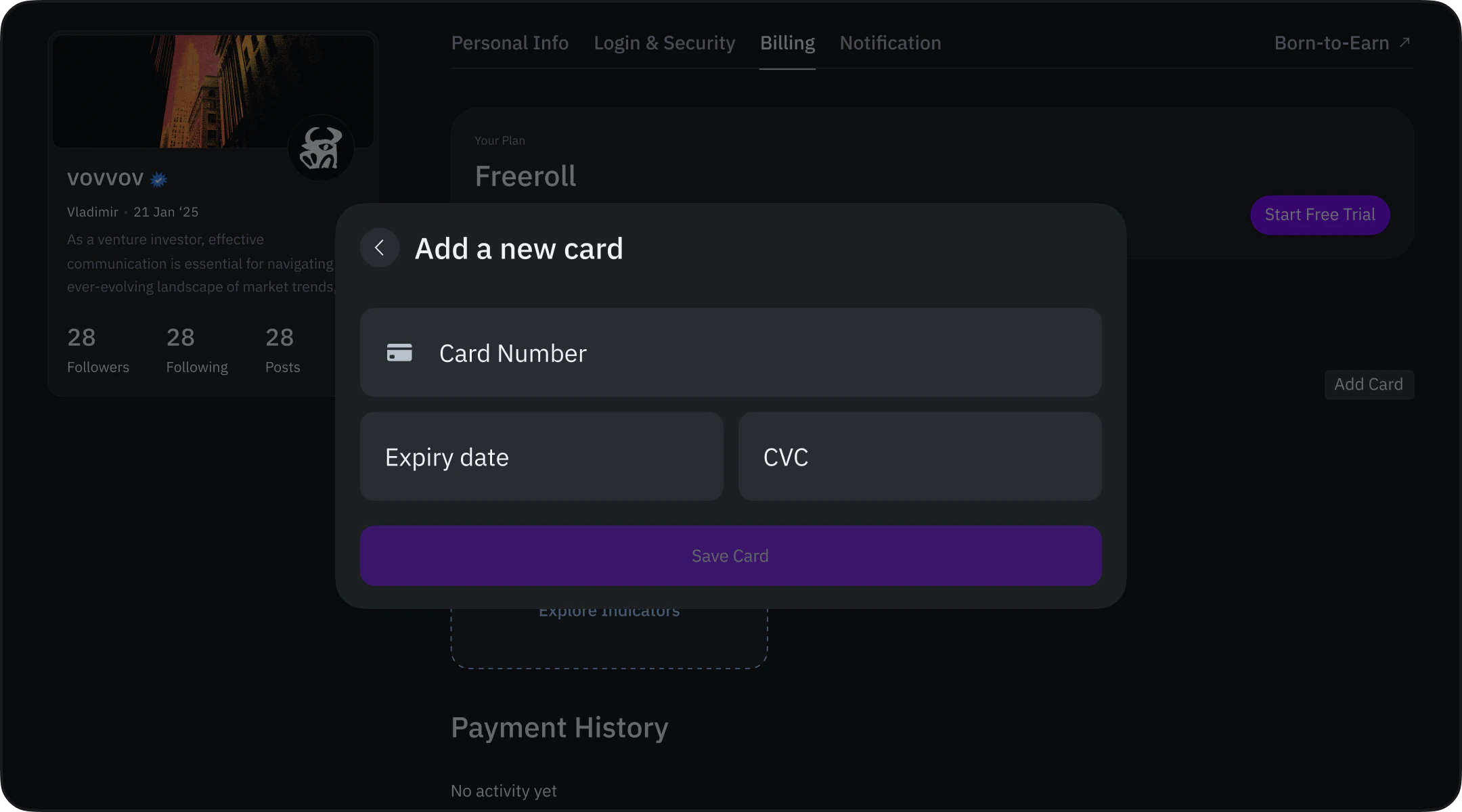 * Click "Add a new card" to add new payment methods
* Set a default payment method
* View the default payment notice: "This payment method will be used to pay for all purchases on [TakeProfit.com](http://TakeProfit.com)".
### Important Payment Information
* Multiple cards can be added
* Only one card can be set as default payment method
* Default payment method cannot be deleted unless a new one is added
* All payments are processed through a third-party payment provider. TakeProfit does not store or process your payment information
* To remove all payment data, contact [support@takeprofit.com](mailto:support@takeprofit.com).
### Payment Method Deletion
* Click "Add a new card" to add new payment methods
* Set a default payment method
* View the default payment notice: "This payment method will be used to pay for all purchases on [TakeProfit.com](http://TakeProfit.com)".
### Important Payment Information
* Multiple cards can be added
* Only one card can be set as default payment method
* Default payment method cannot be deleted unless a new one is added
* All payments are processed through a third-party payment provider. TakeProfit does not store or process your payment information
* To remove all payment data, contact [support@takeprofit.com](mailto:support@takeprofit.com).
### Payment Method Deletion
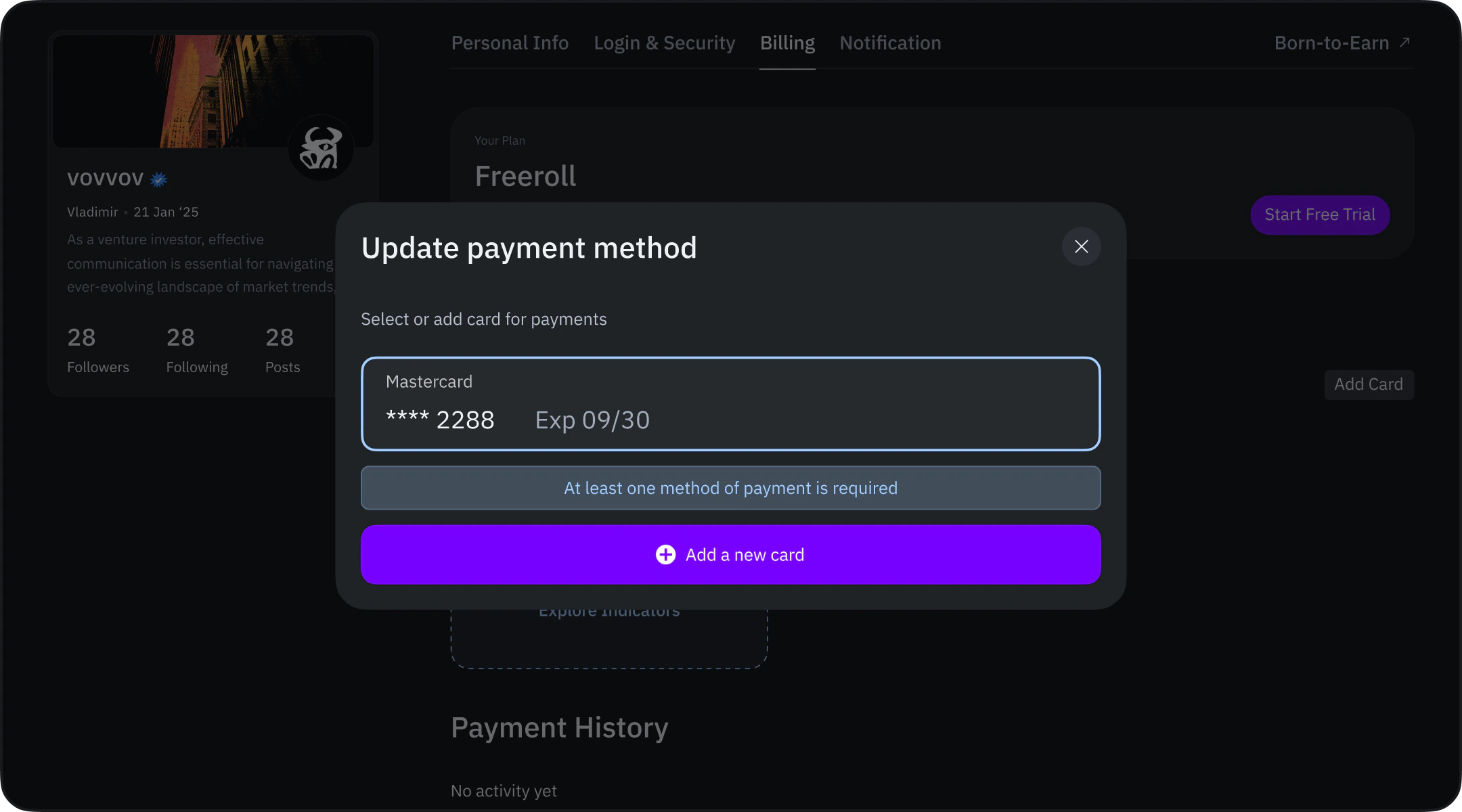 * Click the trash icon next to a payment method to remove it.
The default payment method cannot be deleted unless a new default is set.
For complete payment data removal, email us [support@takeprofit.com](mailto:support@takeprofit.com).
* Click the trash icon next to a payment method to remove it.
The default payment method cannot be deleted unless a new default is set.
For complete payment data removal, email us [support@takeprofit.com](mailto:support@takeprofit.com).