> ## Documentation Index
> Fetch the complete documentation index at: https://takeprofit.com/docs/llms.txt
> Use this file to discover all available pages before exploring further.
# Webhook Notifications Basics
> Webhooks allow you to automate the transfer of data and notifications from the **TakeProfit** platform to other applications and services in real-time. This guide will help you set up notifications via webhooks in TakeProfit for integration with various services such as Telegram, Discord, Slack, or your own servers.
## What is a Webhook in the Context of TakeProfit
A **Webhook** is a mechanism by which **TakeProfit** automatically sends HTTP requests to a specified URL when certain events occur, such as an alert triggering. This allows you to integrate TakeProfit with other services, receiving notifications and data in real-time.
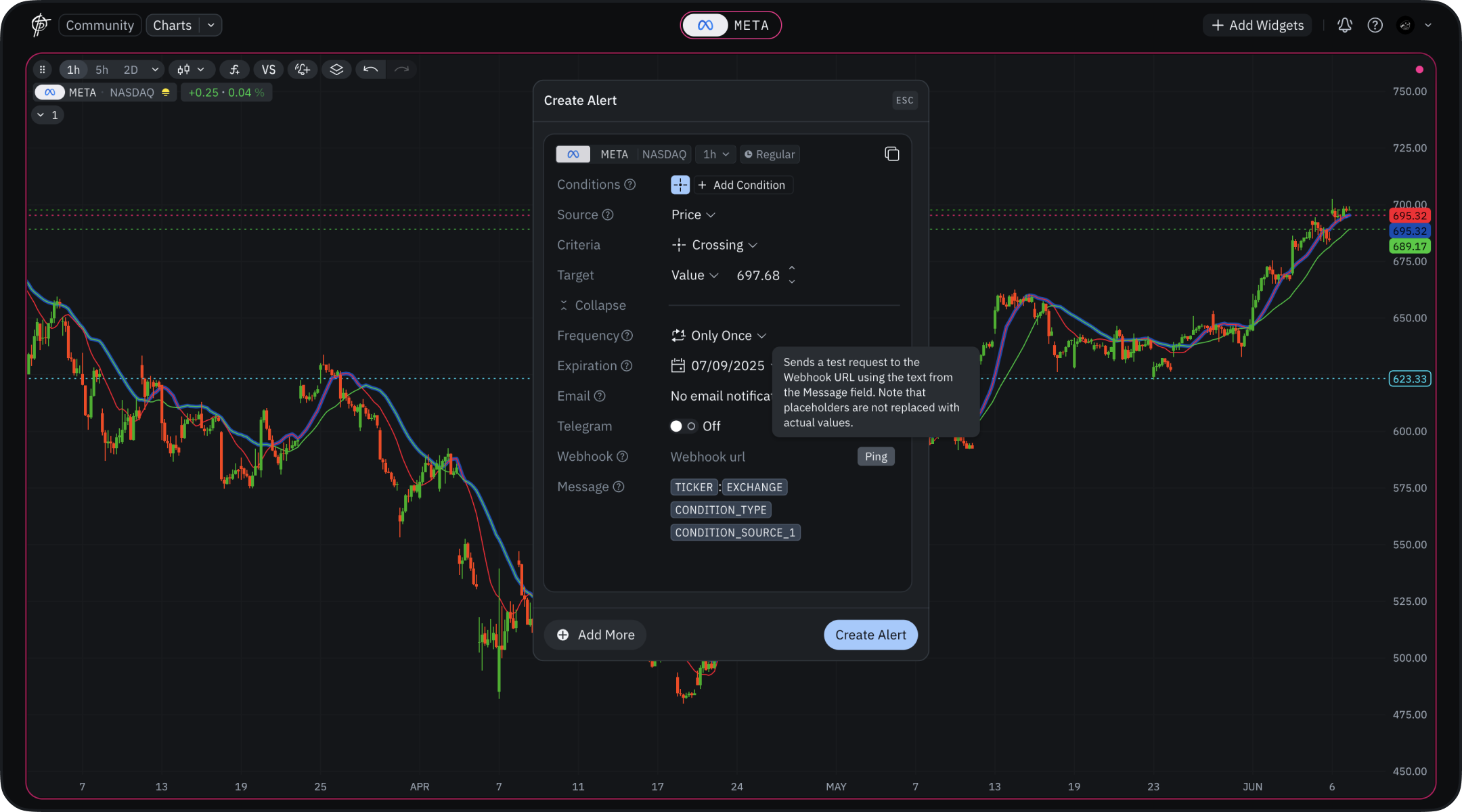 ## How Webhooks Work in TakeProfit
1. **Alert Triggering**: When a specified alert condition in TakeProfit is met (e.g., the price of an asset reaches a certain level), the platform initiates a webhook.
2. **Sending an HTTP Request**: TakeProfit automatically sends an HTTP request (`POST` method) to the URL you have configured for the webhook, transmitting data about the triggered alert in JSON format.
3. **Receiving and Processing Data**: The service or application to which the webhook is directed receives the request and processes the data according to its settings (e.g., sends a notification to a user, updates a database, executes a trading operation).
***
## Steps to Set Up Notifications via Webhooks in TakeProfit
### 1. Preparing the Webhook Receiver
The **Webhook Receiver** is the service or application that will receive and process data from TakeProfit.
* **Choosing a Receiver Service**:
* **Messengers**: Telegram, Discord, Slack, etc.
* **Third-Party Services**: IFTTT, Zapier, etc.
* **Own Server**: Your own server or API for data processing.
If you want to set up alert webhooks for your own server, you should:
* Configure an endpoint on your server to receive HTTP requests.
* Ensure processing of incoming data and implementation of the necessary logic (e.g., writing to a database, sending messages).
* **IP Allowlisting**: TakeProfit routes webhooks through dedicated proxy servers. If your server uses a firewall, you must allowlist the following IP addresses to receive our POST requests:
* `32.196.192.252`
* `52.70.159.39`
* **Creating or Configuring a URL to Receive the Webhook**:
* **For Messengers**:
* **Telegram**: Create a bot via [@BotFather](https://t.me/BotFather) and obtain an API token.
* **Discord**: Create a webhook in the server channel settings.
* **Slack**: Set up an Incoming Webhook in the Slack app.
* **For Your Own Server**:
* Configure an endpoint on your server to receive HTTP requests.
* Ensure processing of incoming data and implementation of the necessary logic (e.g., writing to a database, sending messages).
* **For Third-Party Services**:
* Follow the instructions of the chosen service to obtain the webhook URL and set up the integration.
### 2. Obtaining the Webhook URL
* **Copy or save the webhook URL** that will be used in TakeProfit.
* **Ensure the Security of the URL**: Do not share it publicly to avoid unauthorized access or spam.
### 3. Configuring the Webhook in TakeProfit
1. **Log in to your account** on the **TakeProfit** platform.
2. **Create a new alert** or edit an existing one:
* Specify the necessary alert parameters: **ticker**, **exchange**, **trigger condition**, **timeframe**, etc.
3. **Add the Webhook in the Notification Settings**:
* In the **Notifications** section, select the **Webhook URL** option.
* **Paste the webhook URL** obtained in the previous step.
4. **Configure the Payload** (request body):
* In the **Message** field, enter the JSON with the data that will be sent when the alert triggers.
* Use TakeProfit variables to dynamically form the message.
**Example Payload:**
```json theme={null}
{
"ticker": "{{ticker}}",
"exchange": "{{exchange}}",
"price": "{{close}}",
"condition": "{{condition_type}}",
"time": "{{time_now}}"
}
```
### 4. Using TakeProfit Variables
TakeProfit provides a number of variables that can be used in the Payload:
* `{{ticker}}` — The instrument's ticker (e.g., BTC/USD).
* `{{exchange}}` — The exchange name (e.g., Binance).
* `{{condition_type}}` — The type of trigger condition (e.g., Crossing Up).
* `{{condition_source_1}}` — The source of the first condition (e.g., closing price).
* `{{close}}` — The closing price of the last bar.
**Note:** A full list of available variables can be found in [this article](/guide/alerts/How-use-variable-InAlert) or in the interface when creating an alert.
### 5. Saving and Activating the Alert
* **Check the correctness of the alert settings** and webhook, including the correctness of the URL and the JSON syntax in the Payload.
* Click **Create Alert** or **Save** to save and activate the alert.
***
## Testing the Webhook
1. **Trigger the Alert**: Set a condition that is easy to fulfill so that the alert triggers (e.g., price below the current level).
2. **Check for Notification Receipt** on the webhook receiver side (e.g., in Telegram, Discord, or your server).
3. **Debugging**:
* If the notification is not received, check the correctness of the webhook URL.
* Ensure that the Payload format meets the receiver's requirements and is correctly formed (check the JSON syntax).
* Check logs on the receiver side to identify possible errors or reasons for failure.
***
## Examples of Using Webhooks in TakeProfit
### 1. Sending Notifications to Telegram
* **Create a bot** in Telegram via [@BotFather](https://t.me/BotFather) and obtain the API token.
* **Obtain your Chat ID** (for a personal chat or group) using the bot [@userinfobot](https://t.me/userinfobot).
* **Form the URL for sending messages** via the Telegram API:
```
https://api.telegram.org/bot/sendMessage
```
* **Configure the Payload** in TakeProfit:
```json theme={null}
{
"chat_id": "YOUR_CHAT_ID",
"text": "🔔 Alert: {{ticker}} on {{exchange}} reached {{condition_source_1}}.\nPrice: {{close}}"
}
```
### 2. Integration with Discord
* **Create a Webhook** in Discord:
* Go to the channel settings on your server.
* In the **Integrations** section, select **Webhooks** and create a new one.
* **Copy the webhook URL**.
* **Configure the Payload** in TakeProfit:
```json theme={null}
{
"content": "🔔 **Alert for {{ticker}}**\nExchange: {{exchange}}\nPrice: {{close}}\nCondition: {{condition_type}}"
}
```
### 3. Sending Data to Your Own Server
* **Set up your server** to receive `POST` requests at a specific URL.
* **Process the data** received from TakeProfit according to your requirements (e.g., saving to a database, initiating automated trading).
* **Use the Payload** to transmit the necessary data:
```json theme={null}
{
"symbol": "{{ticker}}",
"exchange": "{{exchange}}",
"price": "{{close}}",
"condition": "{{condition_type}}",
"time": "{{time_now}}"
}
```
***
## Best Practices and Tips
* **Security**:
* **Keep the webhook URL secret** to prevent unauthorized access.
* **Use authentication**: If possible, add parameters to authenticate requests.
* **Data Format**:
* **JSON Validation**: Use JSON validators to ensure the syntax is correct.
* **Escaping Characters**: Escape special characters in strings if necessary.
* **Debugging and Monitoring**:
* **Logging**: Enable logging on the webhook receiver side to track received requests and possible errors.
* **Testing**: Regularly test the webhooks, especially after making changes to settings or platform updates.
* **Using Variables**:
* **Up-to-date Data**: Use variables to get current data each time the alert triggers.
* **Availability Check**: Ensure that the variables used are supported by TakeProfit and work correctly.
* **Documentation**:
* **Study the official TakeProfit documentation** for detailed information on webhook capabilities and available variables.
***
## Conclusion
Setting up notifications via webhooks in the **TakeProfit** platform provides powerful opportunities for integration with other services and automating your workflows. By following this guide and adhering to best practices, you can effectively configure webhooks and receive notifications in a format convenient for you, allowing you to respond promptly to market changes.
***
**Note**: Always keep up-to-date with the TakeProfit platform documentation and the services you integrate with, as functionality may be updated and changed over time.
## How Webhooks Work in TakeProfit
1. **Alert Triggering**: When a specified alert condition in TakeProfit is met (e.g., the price of an asset reaches a certain level), the platform initiates a webhook.
2. **Sending an HTTP Request**: TakeProfit automatically sends an HTTP request (`POST` method) to the URL you have configured for the webhook, transmitting data about the triggered alert in JSON format.
3. **Receiving and Processing Data**: The service or application to which the webhook is directed receives the request and processes the data according to its settings (e.g., sends a notification to a user, updates a database, executes a trading operation).
***
## Steps to Set Up Notifications via Webhooks in TakeProfit
### 1. Preparing the Webhook Receiver
The **Webhook Receiver** is the service or application that will receive and process data from TakeProfit.
* **Choosing a Receiver Service**:
* **Messengers**: Telegram, Discord, Slack, etc.
* **Third-Party Services**: IFTTT, Zapier, etc.
* **Own Server**: Your own server or API for data processing.
If you want to set up alert webhooks for your own server, you should:
* Configure an endpoint on your server to receive HTTP requests.
* Ensure processing of incoming data and implementation of the necessary logic (e.g., writing to a database, sending messages).
* **IP Allowlisting**: TakeProfit routes webhooks through dedicated proxy servers. If your server uses a firewall, you must allowlist the following IP addresses to receive our POST requests:
* `32.196.192.252`
* `52.70.159.39`
* **Creating or Configuring a URL to Receive the Webhook**:
* **For Messengers**:
* **Telegram**: Create a bot via [@BotFather](https://t.me/BotFather) and obtain an API token.
* **Discord**: Create a webhook in the server channel settings.
* **Slack**: Set up an Incoming Webhook in the Slack app.
* **For Your Own Server**:
* Configure an endpoint on your server to receive HTTP requests.
* Ensure processing of incoming data and implementation of the necessary logic (e.g., writing to a database, sending messages).
* **For Third-Party Services**:
* Follow the instructions of the chosen service to obtain the webhook URL and set up the integration.
### 2. Obtaining the Webhook URL
* **Copy or save the webhook URL** that will be used in TakeProfit.
* **Ensure the Security of the URL**: Do not share it publicly to avoid unauthorized access or spam.
### 3. Configuring the Webhook in TakeProfit
1. **Log in to your account** on the **TakeProfit** platform.
2. **Create a new alert** or edit an existing one:
* Specify the necessary alert parameters: **ticker**, **exchange**, **trigger condition**, **timeframe**, etc.
3. **Add the Webhook in the Notification Settings**:
* In the **Notifications** section, select the **Webhook URL** option.
* **Paste the webhook URL** obtained in the previous step.
4. **Configure the Payload** (request body):
* In the **Message** field, enter the JSON with the data that will be sent when the alert triggers.
* Use TakeProfit variables to dynamically form the message.
**Example Payload:**
```json theme={null}
{
"ticker": "{{ticker}}",
"exchange": "{{exchange}}",
"price": "{{close}}",
"condition": "{{condition_type}}",
"time": "{{time_now}}"
}
```
### 4. Using TakeProfit Variables
TakeProfit provides a number of variables that can be used in the Payload:
* `{{ticker}}` — The instrument's ticker (e.g., BTC/USD).
* `{{exchange}}` — The exchange name (e.g., Binance).
* `{{condition_type}}` — The type of trigger condition (e.g., Crossing Up).
* `{{condition_source_1}}` — The source of the first condition (e.g., closing price).
* `{{close}}` — The closing price of the last bar.
**Note:** A full list of available variables can be found in [this article](/guide/alerts/How-use-variable-InAlert) or in the interface when creating an alert.
### 5. Saving and Activating the Alert
* **Check the correctness of the alert settings** and webhook, including the correctness of the URL and the JSON syntax in the Payload.
* Click **Create Alert** or **Save** to save and activate the alert.
***
## Testing the Webhook
1. **Trigger the Alert**: Set a condition that is easy to fulfill so that the alert triggers (e.g., price below the current level).
2. **Check for Notification Receipt** on the webhook receiver side (e.g., in Telegram, Discord, or your server).
3. **Debugging**:
* If the notification is not received, check the correctness of the webhook URL.
* Ensure that the Payload format meets the receiver's requirements and is correctly formed (check the JSON syntax).
* Check logs on the receiver side to identify possible errors or reasons for failure.
***
## Examples of Using Webhooks in TakeProfit
### 1. Sending Notifications to Telegram
* **Create a bot** in Telegram via [@BotFather](https://t.me/BotFather) and obtain the API token.
* **Obtain your Chat ID** (for a personal chat or group) using the bot [@userinfobot](https://t.me/userinfobot).
* **Form the URL for sending messages** via the Telegram API:
```
https://api.telegram.org/bot/sendMessage
```
* **Configure the Payload** in TakeProfit:
```json theme={null}
{
"chat_id": "YOUR_CHAT_ID",
"text": "🔔 Alert: {{ticker}} on {{exchange}} reached {{condition_source_1}}.\nPrice: {{close}}"
}
```
### 2. Integration with Discord
* **Create a Webhook** in Discord:
* Go to the channel settings on your server.
* In the **Integrations** section, select **Webhooks** and create a new one.
* **Copy the webhook URL**.
* **Configure the Payload** in TakeProfit:
```json theme={null}
{
"content": "🔔 **Alert for {{ticker}}**\nExchange: {{exchange}}\nPrice: {{close}}\nCondition: {{condition_type}}"
}
```
### 3. Sending Data to Your Own Server
* **Set up your server** to receive `POST` requests at a specific URL.
* **Process the data** received from TakeProfit according to your requirements (e.g., saving to a database, initiating automated trading).
* **Use the Payload** to transmit the necessary data:
```json theme={null}
{
"symbol": "{{ticker}}",
"exchange": "{{exchange}}",
"price": "{{close}}",
"condition": "{{condition_type}}",
"time": "{{time_now}}"
}
```
***
## Best Practices and Tips
* **Security**:
* **Keep the webhook URL secret** to prevent unauthorized access.
* **Use authentication**: If possible, add parameters to authenticate requests.
* **Data Format**:
* **JSON Validation**: Use JSON validators to ensure the syntax is correct.
* **Escaping Characters**: Escape special characters in strings if necessary.
* **Debugging and Monitoring**:
* **Logging**: Enable logging on the webhook receiver side to track received requests and possible errors.
* **Testing**: Regularly test the webhooks, especially after making changes to settings or platform updates.
* **Using Variables**:
* **Up-to-date Data**: Use variables to get current data each time the alert triggers.
* **Availability Check**: Ensure that the variables used are supported by TakeProfit and work correctly.
* **Documentation**:
* **Study the official TakeProfit documentation** for detailed information on webhook capabilities and available variables.
***
## Conclusion
Setting up notifications via webhooks in the **TakeProfit** platform provides powerful opportunities for integration with other services and automating your workflows. By following this guide and adhering to best practices, you can effectively configure webhooks and receive notifications in a format convenient for you, allowing you to respond promptly to market changes.
***
**Note**: Always keep up-to-date with the TakeProfit platform documentation and the services you integrate with, as functionality may be updated and changed over time.